Qt Quick Controls consist of a hierarchy (tree) of items. In order to provide a custom look and feel, the default QML implementation of each item can be replaced with a custom one.
Sometimes you'll want to create a "one-off" look for a specific part of your UI, and use a complete style everywhere else. Perhaps you're happy with the style you're using, but there's a certain button that has some special significance.
The first way to create this button is to simply define it in-place, wherever it is needed. For example, perhaps you're not satisfied with the Basic style's Button having square corners. To make them rounded, you can override the background item and set the radius property of Rectangle:
import QtQuick
import QtQuick.Controls.Basic
ApplicationWindow {
    width: 400
    height: 400
    visible: true
    Button {
        id: button
        text: "A Special Button"
        background: Rectangle {
            implicitWidth: 100
            implicitHeight: 40
            color: button.down ? "#d6d6d6" : "#f6f6f6"
            border.color: "#26282a"
            border.width: 1
            radius: 4
        }
    }
}
注意: as the different items that make up a control in any given style are designed to work together, it may be necessary to override other items to get the look you're after. In addition, not all styles can be customized. See the note in Customization Reference 了解更多信息。
The second way to create the button is good if you plan to use your rounded button in several places. It involves moving the code into its own QML file within your project.
For this approach, we'll copy the background code from the Basic style's
Button.qml
. This file can be found in the following path in your Qt installation:
$QTDIR/qml/QtQuick/Controls/Basic/Button.qml
After doing that, we'll simply add the following line:
radius: 4
To avoid confusion with the controls in the module itself, we'll call the file
MyButton.qml
. To use the control in your application, refer to it by its filename:
import QtQuick.Controls.Basic
ApplicationWindow {
    MyButton {
        text: qsTr("A Special Button")
    }
}
The third way to create the button is a bit more structured, both in terms of where the file sits in the file system and how it is used in QML. First, copy an existing file as you did above, but this time, put it into a subfolder in your project named (for example)
controls
. To use the control, first import the folder into a namespace:
import QtQuick.Controls.Basic
import "controls" as MyControls
ApplicationWindow {
    MyControls.Button {
        text: qsTr("A Special Button")
    }
}
As you now have the
MyControls
namespace, you can name the controls after their actual counterparts in the Qt Quick Controls module. You can repeat this process for any control that you wish to add.
An added benefit of these three methods is that it's not necessary to implement the template from scratch.
注意:
the three approaches mentioned here do not work for customizing the attached
ToolTip
, as that is a shared item created internally. To do a one-off customization of a
ToolTip
,见
Custom Tool Tips
. To customize the attached
ToolTip
, it must be provided as part of
your own style
.
There are several ways to go about creating your own styles. Below, we'll explain the various approaches.
In Qt Quick Controls, a style is essentially a set of QML files within a single directory. There are four requirements for a style to be usable :
Button.qml
) must exist.
If we instead used the corresponding type from the QtQuick.Controls import as we did in the previous section, it would not work: the control we were defining would try to derive from itself.
qmldir
file for a style that provides a button:
module MyStyle
Button 2.15 Button.qml
若正使用 compile-time style selection , the qmldir should also import the fallback style:
# ...
import QtQuick.Controls.Basic auto
This can also be done for run-time style selection instead of using, for example, QQuickStyle::setFallbackStyle ().
The directory structure for such a style looks like this:
MyStyle
├─── Button.qml
└─── qmldir
For example, if the path to
MyStyle
directory mentioned above was
/home/user/MyApp/MyStyle
,那么
/home/user/MyApp
must be added to the QML import path.
To 使用 MyStyle in MyApp , refer to it by name:
./MyApp -style MyStyle
The style name must match the casing of the style directory; passing mystyle or MYSTYLE 不支持。
By default, the styling system uses the Basic style as a fallback for controls that aren't implemented. To customize or extend any other built-in style, it is possible to specify a different fallback style using QQuickStyle .
What this means is that you can implement as many controls as you like for your custom style, and place them almost anywhere. It also allows users to create their own styles for your application.
Using the approach above, it is possible to preview a custom style in Qt Quick Designer. In order to do so, ensure that the project has a qtquickcontrols2.conf file, and that the following entry exists:
[Controls]
Style=MyStyle
For more information, take a look at the Flat Style example .
Sometimes you may need to use C++ to extend your custom style.
qt_add_qml_module(ACoolItem
    URI MyItems
    VERSION 1.0
    SOURCES
        acoolcppitem.cpp acoolcppitem.h
)
CONFIG += qmltypes
QML_IMPORT_NAME = MyItems
QML_IMPORT_MAJOR_VERSION = 1
If the header the class is declared in is not accessible from your project's include path, you may have to amend the include path so that the generated registration code can be compiled.
INCLUDEPATH += MyItems
见 从 C++ 定义 QML 类型 and 构建 QML 应用程序 了解更多信息。
When implementing your own style and customizing controls, there are some points to keep in mind to ensure that your application is as performant as possible.
As explained in
Definition of a Style
, when you implement your own style for a control, you start off with the relevant template for that control. For example, a style's
Button.qml
will be structured similarly to this:
T.Button {
    // ...
    background: Rectangle {
        // ...
    }
    contentItem: Text {
        // ...
    }
    // ...
}
When you use a Button in your application, the
background
and
contentItem
items will be created and parented to the root
Button
item:
// Creates the Button root item, the Rectangle background,
// and the Text contentItem.
Button {
    text: qsTr("Confirm")
}
Suppose you then needed to do a one-off customization of the Button (as explained in Customizing a Control ):
import QtQuick
import QtQuick.Controls.Basic
ApplicationWindow {
    width: 400
    height: 400
    visible: true
    Button {
        id: button
        text: "A Special Button"
        background: Rectangle {
            implicitWidth: 100
            implicitHeight: 40
            color: button.down ? "#d6d6d6" : "#f6f6f6"
            border.color: "#26282a"
            border.width: 1
            radius: 4
        }
    }
}
In QML, this would normally result in both the default
background
implementation and the one-off, custom
background
items being created. Qt Quick Controls uses a technique that avoids creating both items, and instead only creates the custom
background
, greatly improving the creation performance of controls.
This technique relies on the absence of an
id
in the style's implementation of that item. If an id is assigned, the technique cannot work, and both items will be created. For example, it can be tempting to assign an id to the
background
or
contentItem
so that other objects within the file can refer to those items:
T.Button {
    // ...
    background: Rectangle {
        id: backgroundRect
        // ...
    }
    contentItem: Text {
        // Use backgroundRect in some way...
    }
    // ...
}
With this code, every time a Button instance with a customized background is created, both backgrounds will be created, resulting in sub-optimal creation performance.
Prior to Qt 5.15, the old, unused background would be deleted to release the resources associated with it. However, as the control does not own the items, it should not delete them. As of Qt 5.15, old items are no longer deleted, and so the
backgroundRect
item will live longer than it needs to—typically until the application exits. Although the old item will be hidden, visually unparented from the control, and removed from the accessibility tree, it is important to keep the creation time and memory usage of these unused items in mind when assigning an id in this context.
The technique mentioned in the section above only works when an item is declaratively assigned for the first time, and so imperative assignments will result in orphaned items. Always use declarative bindings to assign custom items when possible.
When writing the QML for your style's implementation of a control, it's important not to import
QtQuick.Controls
. Doing so will prevent the QML from being compiled by the QML compiler.
Suppose you were using ScrollViews in your application, and decided that you want to customize their scroll bars. It is tempting to just implement a custom ScrollBar .qml and have ScrollView pick up the customized ScrollBar automatically. However, this will not work. You must implement both ScrollBar .qml and ScrollView .qml.
It is common for a style to have certain properties or attributes that apply to all controls. Attached properties are a great way of extending an item in QML without having to modify any existing C++ belonging to that item. For example, both the Material and Universal styles have an attached theme property that controls whether an item and its children will be rendered in a light or dark theme.
As an example, let's add an attached property that controls elevation. Our style will illustrate the elevation with a drop shadow; the higher the elevation, the larger the shadow.
The first step is to
create a new Qt Quick Controls application
in Qt Creator. After that, we add a C++ type that stores the elevation. Since the type will be used for every control supported by our style, and because we may wish to add other attached properties later on, we'll call it MyStyle. Here is
MyStyle.h
:
#ifndef MYSTYLE_H
#define MYSTYLE_H
#include <QObject>
#include <QtQml>
class MyStyle : public QObject
{
    Q_OBJECT
    Q_PROPERTY(int elevation READ elevation WRITE setElevation NOTIFY elevationChanged)
public:
    explicit MyStyle(QObject *parent = nullptr);
    static MyStyle *qmlAttachedProperties(QObject *object);
    int elevation() const;
    void setElevation(int elevation);
signals:
    void elevationChanged();
private:
    int m_elevation;
};
QML_DECLARE_TYPEINFO(MyStyle, QML_HAS_ATTACHED_PROPERTIES)
#endif // MYSTYLE_H
MyStyle.cpp
:
#include "mystyle.h"
MyStyle::MyStyle(QObject *parent) :
    QObject(parent),
    m_elevation(0)
{
}
MyStyle *MyStyle::qmlAttachedProperties(QObject *object)
{
    return new MyStyle(object);
}
int MyStyle::elevation() const
{
    return m_elevation;
}
void MyStyle::setElevation(int elevation)
{
    if (elevation == m_elevation)
        return;
    m_elevation = elevation;
    emit elevationChanged();
}
The
MyStyle
type is special in the sense that it shouldn't be instantiated, but rather used for its attached properties. For that reason, we register it in the following manner in
main.cpp
:
#include <QGuiApplication>
#include <QQmlApplicationEngine>
#include "mystyle.h"
int main(int argc, char *argv[])
{
    QGuiApplication app(argc, argv);
    qmlRegisterUncreatableType<MyStyle>("MyStyle", 1, 0, "MyStyle", "MyStyle is an attached property");
    QQmlApplicationEngine engine;
    // Make the directory containing our style known to the QML engine.
    engine.addImportPath(":/");
    engine.load(QUrl(QLatin1String("qrc:/main.qml")));
    return app.exec();
}
We then copy
Button.qml
from the Basic style in
$QTDIR/qml/QtQuick/Controls/Basic/
into a new
myproject
folder in our project directory. Add the newly copied
Button.qml
to
qml.qrc
, which is the resource file that contains our QML files.
Next, we add a drop shadow to the background delegate of the Button:
// ...
import QtQuick.Effects
import MyStyle
// ...
background: Rectangle {
    // ...
    layer.enabled: control.enabled && control.MyStyle.elevation > 0
    layer.effect: MultiEffect {
        shadowEnabled: true
        shadowHorizontalOffset: 3
        shadowVerticalOffset: 3
        shadowColor: control.visualFocus ? "#330066ff" : "#aaaaaa"
        shadowBlur: control.pressed ? 0.8 : 0.4
    }
}
Note that we:
0
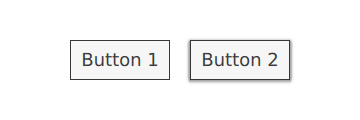
To try out the attached property, we create a
Row
with two Buttons in
main.qml
:
import QtQuick
import QtQuick.Controls
import MyStyle 1.0
ApplicationWindow {
    id: window
    width: 400
    height: 400
    visible: true
    Row {
        spacing: 20
        anchors.centerIn: parent
        Button {
            text: "Button 1"
        }
        Button {
            text: "Button 2"
            MyStyle.elevation: 10
        }
    }
}
One button has no elevation, and the other has an elevation of
10
.
With that in place, we can run our example. To tell the application to use our new style, we pass
-style MyStyle
as an application argument, but there are
many ways
to specify the style to use.
The end result:
注意,
import MyStyle 1.0
statement is only necessary because we are using the attached property belonging to
MyStyle
. Both buttons will use our custom style, even if we were to remove the import.
The following snippets present examples where the Basic style's controls have been customized using the same approach as the Customizing a Control section. The code can be used as a starting point to implement a custom look and feel.
注意: The macOS and Windows styles are not suitable for customizing. It is instead recommended to always base a customized control on top of a single style that is available on all platforms, e.g 基本风格 , Fusion 风格 , 想象风格 , 材质风格 , 通用风格 . By doing so, you are guaranteed that it will always look the same, regardless of which style the application is run with. To learn how to use a different style, see 在 Qt Quick Controls 中使用风格 . Alternatively, you can create your own style .
ApplicationWindow consists of one visual item: background .
import QtQuick
import QtQuick.Controls.Basic
ApplicationWindow {
    visible: true
    background: Rectangle {
        gradient: Gradient {
            GradientStop { position: 0; color: "#ffffff" }
            GradientStop { position: 1; color: "#c1bbf9" }
        }
    }
}
BusyIndicator consists of two visual items: background and contentItem .

import QtQuick
import QtQuick.Controls.Basic
BusyIndicator {
    id: control
    contentItem: Item {
        implicitWidth: 64
        implicitHeight: 64
        Item {
            id: item
            x: parent.width / 2 - 32
            y: parent.height / 2 - 32
            width: 64
            height: 64
            opacity: control.running ? 1 : 0
            Behavior on opacity {
                OpacityAnimator {
                    duration: 250
                }
            }
            RotationAnimator {
                target: item
                running: control.visible && control.running
                from: 0
                to: 360
                loops: Animation.Infinite
                duration: 1250
            }
            Repeater {
                id: repeater
                model: 6
                Rectangle {
                    id: delegate
                    x: item.width / 2 - width / 2
                    y: item.height / 2 - height / 2
                    implicitWidth: 10
                    implicitHeight: 10
                    radius: 5
                    color: "#21be2b"
                    required property int index
                    transform: [
                        Translate {
                            y: -Math.min(item.width, item.height) * 0.5 + 5
                        },
                        Rotation {
                            angle: delegate.index / repeater.count * 360
                            origin.x: 5
                            origin.y: 5
                        }
                    ]
                }
            }
        }
    }
}
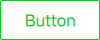
Button consists of two visual items: background and contentItem .
import QtQuick
import QtQuick.Controls.Basic
Button {
    id: control
    text: qsTr("Button")
    contentItem: Text {
        text: control.text
        font: control.font
        opacity: enabled ? 1.0 : 0.3
        color: control.down ? "#17a81a" : "#21be2b"
        horizontalAlignment: Text.AlignHCenter
        verticalAlignment: Text.AlignVCenter
        elide: Text.ElideRight
    }
    background: Rectangle {
        implicitWidth: 100
        implicitHeight: 40
        opacity: enabled ? 1 : 0.3
        border.color: control.down ? "#17a81a" : "#21be2b"
        border.width: 1
        radius: 2
    }
}
CheckBox consists of three visual items: background , contentItem and indicator .

import QtQuick
import QtQuick.Controls.Basic
CheckBox {
    id: control
    text: qsTr("CheckBox")
    checked: true
    indicator: Rectangle {
        implicitWidth: 26
        implicitHeight: 26
        x: control.leftPadding
        y: parent.height / 2 - height / 2
        radius: 3
        border.color: control.down ? "#17a81a" : "#21be2b"
        Rectangle {
            width: 14
            height: 14
            x: 6
            y: 6
            radius: 2
            color: control.down ? "#17a81a" : "#21be2b"
            visible: control.checked
        }
    }
    contentItem: Text {
        text: control.text
        font: control.font
        opacity: enabled ? 1.0 : 0.3
        color: control.down ? "#17a81a" : "#21be2b"
        verticalAlignment: Text.AlignVCenter
        leftPadding: control.indicator.width + control.spacing
    }
}
CheckDelegate consists of three visual items: background , contentItem and indicator .

import QtQuick
import QtQuick.Controls.Basic
CheckDelegate {
    id: control
    text: qsTr("CheckDelegate")
    checked: true
    contentItem: Text {
        rightPadding: control.indicator.width + control.spacing
        text: control.text
        font: control.font
        opacity: enabled ? 1.0 : 0.3
        color: control.down ? "#17a81a" : "#21be2b"
        elide: Text.ElideRight
        verticalAlignment: Text.AlignVCenter
    }
    indicator: Rectangle {
        implicitWidth: 26
        implicitHeight: 26
        x: control.width - width - control.rightPadding
        y: control.topPadding + control.availableHeight / 2 - height / 2
        radius: 3
        color: "transparent"
        border.color: control.down ? "#17a81a" : "#21be2b"
        Rectangle {
            width: 14
            height: 14
            x: 6
            y: 6
            radius: 2
            color: control.down ? "#17a81a" : "#21be2b"
            visible: control.checked
        }
    }
    background: Rectangle {
        implicitWidth: 100
        implicitHeight: 40
        visible: control.down || control.highlighted
        color: control.down ? "#bdbebf" : "#eeeeee"
    }
}
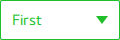
ComboBox consists of background , contentItem , popup , indicator ,和 delegate .
pragma ComponentBehavior: Bound
import QtQuick
import QtQuick.Controls.Basic
ComboBox {
    id: control
    model: ["First", "Second", "Third"]
    delegate: ItemDelegate {
        id: delegate
        required property var model
        required property int index
        width: control.width
        contentItem: Text {
            text: delegate.model[control.textRole]
            color: "#21be2b"
            font: control.font
            elide: Text.ElideRight
            verticalAlignment: Text.AlignVCenter
        }
        highlighted: control.highlightedIndex === index
    }
    indicator: Canvas {
        id: canvas
        x: control.width - width - control.rightPadding
        y: control.topPadding + (control.availableHeight - height) / 2
        width: 12
        height: 8
        contextType: "2d"
        Connections {
            target: control
            function onPressedChanged() { canvas.requestPaint(); }
        }
        onPaint: {
            context.reset();
            context.moveTo(0, 0);
            context.lineTo(width, 0);
            context.lineTo(width / 2, height);
            context.closePath();
            context.fillStyle = control.pressed ? "#17a81a" : "#21be2b";
            context.fill();
        }
    }
    contentItem: Text {
        leftPadding: 0
        rightPadding: control.indicator.width + control.spacing
        text: control.displayText
        font: control.font
        color: control.pressed ? "#17a81a" : "#21be2b"
        verticalAlignment: Text.AlignVCenter
        elide: Text.ElideRight
    }
    background: Rectangle {
        implicitWidth: 120
        implicitHeight: 40
        border.color: control.pressed ? "#17a81a" : "#21be2b"
        border.width: control.visualFocus ? 2 : 1
        radius: 2
    }
    popup: Popup {
        y: control.height - 1
        width: control.width
        height: Math.min(contentItem.implicitHeight, control.Window.height - topMargin - bottomMargin)
        padding: 1
        contentItem: ListView {
            clip: true
            implicitHeight: contentHeight
            model: control.popup.visible ? control.delegateModel : null
            currentIndex: control.highlightedIndex
            ScrollIndicator.vertical: ScrollIndicator { }
        }
        background: Rectangle {
            border.color: "#21be2b"
            radius: 2
        }
    }
}
As explained in ComboBox Model Roles , ComboBox supports multiple types of models.
由于
all the models provide an anonymous property
with
modelData
, the following expression retrieves the right text in all cases:
text: model[control.textRole]
When you provide a specific
textRole
and a model with structured data that provides the selected role, this is expression is a regular property lookup. When you provide a model with singular data, such as a list of strings, and an empty
textRole
, this expression retrieves the
modelData
.
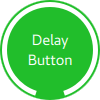
DelayButton consists of two visual items: background and contentItem .
import QtQuick
import QtQuick.Controls.Basic
DelayButton {
    id: control
    checked: true
    text: qsTr("Delay\nButton")
    contentItem: Text {
        text: control.text
        font: control.font
        opacity: enabled ? 1.0 : 0.3
        color: "white"
        horizontalAlignment: Text.AlignHCenter
        verticalAlignment: Text.AlignVCenter
        elide: Text.ElideRight
    }
    background: Rectangle {
        implicitWidth: 100
        implicitHeight: 100
        opacity: enabled ? 1 : 0.3
        color: control.down ? "#17a81a" : "#21be2b"
        radius: size / 2
        readonly property real size: Math.min(control.width, control.height)
        width: size
        height: size
        anchors.centerIn: parent
        Canvas {
            id: canvas
            anchors.fill: parent
            Connections {
                target: control
                function onProgressChanged() { canvas.requestPaint(); }
            }
            onPaint: {
                var ctx = getContext("2d")
                ctx.clearRect(0, 0, width, height)
                ctx.strokeStyle = "white"
                ctx.lineWidth = parent.size / 20
                ctx.beginPath()
                var startAngle = Math.PI / 5 * 3
                var endAngle = startAngle + control.progress * Math.PI / 5 * 9
                ctx.arc(width / 2, height / 2, width / 2 - ctx.lineWidth / 2 - 2, startAngle, endAngle)
                ctx.stroke()
            }
        }
    }
}
Dial consists of two visual items: background and handle .
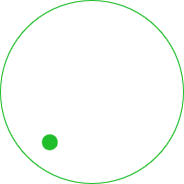
import QtQuick
import QtQuick.Controls.Basic
Dial {
    id: control
    background: Rectangle {
        x: control.width / 2 - width / 2
        y: control.height / 2 - height / 2
        implicitWidth: 140
        implicitHeight: 140
        width: Math.max(64, Math.min(control.width, control.height))
        height: width
        color: "transparent"
        radius: width / 2
        border.color: control.pressed ? "#17a81a" : "#21be2b"
        opacity: control.enabled ? 1 : 0.3
    }
    handle: Rectangle {
        id: handleItem
        x: control.background.x + control.background.width / 2 - width / 2
        y: control.background.y + control.background.height / 2 - height / 2
        width: 16
        height: 16
        color: control.pressed ? "#17a81a" : "#21be2b"
        radius: 8
        antialiasing: true
        opacity: control.enabled ? 1 : 0.3
        transform: [
            Translate {
                y: -Math.min(control.background.width, control.background.height) * 0.4 + handleItem.height / 2
            },
            Rotation {
                angle: control.angle
                origin.x: handleItem.width / 2
                origin.y: handleItem.height / 2
            }
        ]
    }
}
Drawer can have a visual background 项。
background: Rectangle {
    Rectangle {
        x: parent.width - 1
        width: 1
        height: parent.height
        color: "#21be2b"
    }
}
Frame consists of one visual item: background .

import QtQuick
import QtQuick.Controls.Basic
Frame {
    background: Rectangle {
        color: "transparent"
        border.color: "#21be2b"
        radius: 2
    }
    Label {
        text: qsTr("Content goes here!")
    }
}
GroupBox consists of two visual items: background and label .
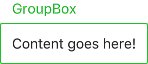
import QtQuick
import QtQuick.Controls.Basic
GroupBox {
    id: control
    title: qsTr("GroupBox")
    background: Rectangle {
        y: control.topPadding - control.bottomPadding
        width: parent.width
        height: parent.height - control.topPadding + control.bottomPadding
        color: "transparent"
        border.color: "#21be2b"
        radius: 2
    }
    label: Label {
        x: control.leftPadding
        width: control.availableWidth
        text: control.title
        color: "#21be2b"
        elide: Text.ElideRight
    }
    Label {
        text: qsTr("Content goes here!")
    }
}
ItemDelegate consists of two visual items: background and contentItem .
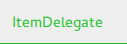
import QtQuick
import QtQuick.Controls.Basic
ItemDelegate {
    id: control
    text: qsTr("ItemDelegate")
    contentItem: Text {
        rightPadding: control.spacing
        text: control.text
        font: control.font
        color: control.enabled ? (control.down ? "#17a81a" : "#21be2b") : "#bdbebf"
        elide: Text.ElideRight
        verticalAlignment: Text.AlignVCenter
    }
    background: Rectangle {
        implicitWidth: 100
        implicitHeight: 40
        opacity: enabled ? 1 : 0.3
        color: control.down ? "#dddedf" : "#eeeeee"
        Rectangle {
            width: parent.width
            height: 1
            color: control.down ? "#17a81a" : "#21be2b"
            anchors.bottom: parent.bottom
        }
    }
}
Label can have a visual background 项。

import QtQuick
import QtQuick.Controls.Basic
Label {
    text: qsTr("Label")
    color: "#21be2b"
}
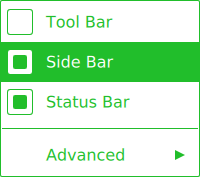
import QtQuick
import QtQuick.Controls.Basic
Menu {
    id: menu
    Action { text: qsTr("Tool Bar"); checkable: true }
    Action { text: qsTr("Side Bar"); checkable: true; checked: true }
    Action { text: qsTr("Status Bar"); checkable: true; checked: true }
    MenuSeparator {
        contentItem: Rectangle {
            implicitWidth: 200
            implicitHeight: 1
            color: "#21be2b"
        }
    }
    Menu {
        title: qsTr("Advanced")
        // ...
    }
    topPadding: 2
    bottomPadding: 2
    delegate: MenuItem {
        id: menuItem
        implicitWidth: 200
        implicitHeight: 40
        arrow: Canvas {
            x: parent.width - width
            implicitWidth: 40
            implicitHeight: 40
            visible: menuItem.subMenu
            onPaint: {
                var ctx = getContext("2d")
                ctx.fillStyle = menuItem.highlighted ? "#ffffff" : "#21be2b"
                ctx.moveTo(15, 15)
                ctx.lineTo(width - 15, height / 2)
                ctx.lineTo(15, height - 15)
                ctx.closePath()
                ctx.fill()
            }
        }
        indicator: Item {
            implicitWidth: 40
            implicitHeight: 40
            Rectangle {
                width: 26
                height: 26
                anchors.centerIn: parent
                visible: menuItem.checkable
                border.color: "#21be2b"
                radius: 3
                Rectangle {
                    width: 14
                    height: 14
                    anchors.centerIn: parent
                    visible: menuItem.checked
                    color: "#21be2b"
                    radius: 2
                }
            }
        }
        contentItem: Text {
            leftPadding: menuItem.indicator.width
            rightPadding: menuItem.arrow.width
            text: menuItem.text
            font: menuItem.font
            opacity: enabled ? 1.0 : 0.3
            color: menuItem.highlighted ? "#ffffff" : "#21be2b"
            horizontalAlignment: Text.AlignLeft
            verticalAlignment: Text.AlignVCenter
            elide: Text.ElideRight
        }
        background: Rectangle {
            implicitWidth: 200
            implicitHeight: 40
            opacity: enabled ? 1 : 0.3
            color: menuItem.highlighted ? "#21be2b" : "transparent"
        }
    }
    background: Rectangle {
        implicitWidth: 200
        implicitHeight: 40
        color: "#ffffff"
        border.color: "#21be2b"
        radius: 2
    }
}
MenuBar can have a visual background item, and MenuBarItem consists of two visual items: background and contentItem .

import QtQuick
import QtQuick.Controls.Basic
MenuBar {
    id: menuBar
    Menu { title: qsTr("File") }
    Menu { title: qsTr("Edit") }
    Menu { title: qsTr("View") }
    Menu { title: qsTr("Help") }
    delegate: MenuBarItem {
        id: menuBarItem
        contentItem: Text {
            text: menuBarItem.text
            font: menuBarItem.font
            opacity: enabled ? 1.0 : 0.3
            color: menuBarItem.highlighted ? "#ffffff" : "#21be2b"
            horizontalAlignment: Text.AlignLeft
            verticalAlignment: Text.AlignVCenter
            elide: Text.ElideRight
        }
        background: Rectangle {
            implicitWidth: 40
            implicitHeight: 40
            opacity: enabled ? 1 : 0.3
            color: menuBarItem.highlighted ? "#21be2b" : "transparent"
        }
    }
    background: Rectangle {
        implicitWidth: 40
        implicitHeight: 40
        color: "#ffffff"
        Rectangle {
            color: "#21be2b"
            width: parent.width
            height: 1
            anchors.bottom: parent.bottom
        }
    }
}
PageIndicator consists of a background , contentItem ,和 delegate .

import QtQuick
import QtQuick.Controls.Basic
PageIndicator {
    id: control
    count: 5
    currentIndex: 2
    delegate: Rectangle {
        implicitWidth: 8
        implicitHeight: 8
        radius: width / 2
        color: "#21be2b"
        opacity: index === control.currentIndex ? 0.95 : pressed ? 0.7 : 0.45
        required property int index
        Behavior on opacity {
            OpacityAnimator {
                duration: 100
            }
        }
    }
}
Pane consists of a background .
import QtQuick
import QtQuick.Controls.Basic
Pane {
    background: Rectangle {
        color: "#eeeeee"
    }
    Label {
        text: qsTr("Content goes here!")
    }
}
Popup consists of a background and contentItem .

import QtQuick
import QtQuick.Controls.Basic
Popup {
    id: popup
    background: Rectangle {
        implicitWidth: 200
        implicitHeight: 200
        border.color: "#444"
    }
    contentItem: Column {}
}
ProgressBar consists of two visual items: background and contentItem .

import QtQuick
import QtQuick.Controls.Basic
ProgressBar {
    id: control
    value: 0.5
    padding: 2
    background: Rectangle {
        implicitWidth: 200
        implicitHeight: 6
        color: "#e6e6e6"
        radius: 3
    }
    contentItem: Item {
        implicitWidth: 200
        implicitHeight: 4
        // Progress indicator for determinate state.
        Rectangle {
            width: control.visualPosition * parent.width
            height: parent.height
            radius: 2
            color: "#17a81a"
            visible: !control.indeterminate
        }
        // Scrolling animation for indeterminate state.
        Item {
            anchors.fill: parent
            visible: control.indeterminate
            clip: true
            Row {
                spacing: 20
                Repeater {
                    model: control.width / 40 + 1
                    Rectangle {
                        color: "#17a81a"
                        width: 20
                        height: control.height
                    }
                }
                XAnimator on x {
                    from: 0
                    to: -40
                    loops: Animation.Infinite
                    running: control.indeterminate
                }
            }
        }
    }
}
Above, the contentItem is also animated to represent an indeterminate progress bar state.
RadioButton consists of three visual items: background , contentItem and indicator .

import QtQuick
import QtQuick.Controls.Basic
RadioButton {
    id: control
    text: qsTr("RadioButton")
    checked: true
    indicator: Rectangle {
        implicitWidth: 26
        implicitHeight: 26
        x: control.leftPadding
        y: parent.height / 2 - height / 2
        radius: 13
        border.color: control.down ? "#17a81a" : "#21be2b"
        Rectangle {
            width: 14
            height: 14
            x: 6
            y: 6
            radius: 7
            color: control.down ? "#17a81a" : "#21be2b"
            visible: control.checked
        }
    }
    contentItem: Text {
        text: control.text
        font: control.font
        opacity: enabled ? 1.0 : 0.3
        color: control.down ? "#17a81a" : "#21be2b"
        verticalAlignment: Text.AlignVCenter
        leftPadding: control.indicator.width + control.spacing
    }
}
RadioDelegate consists of three visual items: background , contentItem and indicator .

import QtQuick
import QtQuick.Controls.Basic
RadioDelegate {
    id: control
    text: qsTr("RadioDelegate")
    checked: true
    contentItem: Text {
        rightPadding: control.indicator.width + control.spacing
        text: control.text
        font: control.font
        opacity: enabled ? 1.0 : 0.3
        color: control.down ? "#17a81a" : "#21be2b"
        elide: Text.ElideRight
        verticalAlignment: Text.AlignVCenter
    }
    indicator: Rectangle {
        implicitWidth: 26
        implicitHeight: 26
        x: control.width - width - control.rightPadding
        y: parent.height / 2 - height / 2
        radius: 13
        color: "transparent"
        border.color: control.down ? "#17a81a" : "#21be2b"
        Rectangle {
            width: 14
            height: 14
            x: 6
            y: 6
            radius: 7
            color: control.down ? "#17a81a" : "#21be2b"
            visible: control.checked
        }
    }
    background: Rectangle {
        implicitWidth: 100
        implicitHeight: 40
        visible: control.down || control.highlighted
        color: control.down ? "#bdbebf" : "#eeeeee"
    }
}
RangeSlider consists of three visual items: background , first.handle and second.handle .

import QtQuick
import QtQuick.Controls.Basic
RangeSlider {
    id: control
    first.value: 0.25
    second.value: 0.75
    background: Rectangle {
        x: control.leftPadding
        y: control.topPadding + control.availableHeight / 2 - height / 2
        implicitWidth: 200
        implicitHeight: 4
        width: control.availableWidth
        height: implicitHeight
        radius: 2
        color: "#bdbebf"
        Rectangle {
            x: control.first.visualPosition * parent.width
            width: control.second.visualPosition * parent.width - x
            height: parent.height
            color: "#21be2b"
            radius: 2
        }
    }
    first.handle: Rectangle {
        x: control.leftPadding + control.first.visualPosition * (control.availableWidth - width)
        y: control.topPadding + control.availableHeight / 2 - height / 2
        implicitWidth: 26
        implicitHeight: 26
        radius: 13
        color: control.first.pressed ? "#f0f0f0" : "#f6f6f6"
        border.color: "#bdbebf"
    }
    second.handle: Rectangle {
        x: control.leftPadding + control.second.visualPosition * (control.availableWidth - width)
        y: control.topPadding + control.availableHeight / 2 - height / 2
        implicitWidth: 26
        implicitHeight: 26
        radius: 13
        color: control.second.pressed ? "#f0f0f0" : "#f6f6f6"
        border.color: "#bdbebf"
    }
}
RoundButton can be customized in the same manner as Button .
ScrollBar consists of two visual items: background and contentItem .

import QtQuick
import QtQuick.Controls.Basic
ScrollBar {
    id: control
    size: 0.3
    position: 0.2
    active: true
    orientation: Qt.Vertical
    contentItem: Rectangle {
        implicitWidth: 6
        implicitHeight: 100
        radius: width / 2
        color: control.pressed ? "#81e889" : "#c2f4c6"
        // Hide the ScrollBar when it's not needed.
        opacity: control.policy === ScrollBar.AlwaysOn || (control.active && control.size < 1.0) ? 0.75 : 0
        // Animate the changes in opacity (default duration is 250 ms).
        Behavior on opacity {
            NumberAnimation {}
        }
    }
}
ScrollIndicator consists of two visual items: background and contentItem .

import QtQuick
import QtQuick.Controls.Basic
ScrollIndicator {
    id: control
    size: 0.3
    position: 0.2
    active: true
    orientation: Qt.Vertical
    contentItem: Rectangle {
        implicitWidth: 2
        implicitHeight: 100
        color: "#c2f4c6"
    }
}
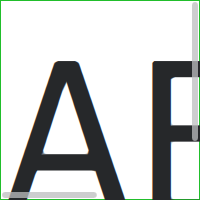
ScrollView consists of a background item, and horizontal and vertical scroll bars.
ScrollView {
    id: control
    width: 200
    height: 200
    focus: true
    Label {
        text: "ABC"
        font.pixelSize: 224
    }
    ScrollBar.vertical: ScrollBar {
        parent: control
        x: control.mirrored ? 0 : control.width - width
        y: control.topPadding
        height: control.availableHeight
        active: control.ScrollBar.horizontal.active
    }
    ScrollBar.horizontal: ScrollBar {
        parent: control
        x: control.leftPadding
        y: control.height - height
        width: control.availableWidth
        active: control.ScrollBar.vertical.active
    }
    background: Rectangle {
        border.color: control.activeFocus ? "#21be2b" : "#bdbebf"
    }
}
Slider consists of two visual items: background ,和 handle .

import QtQuick
import QtQuick.Controls.Basic
Slider {
    id: control
    value: 0.5
    background: Rectangle {
        x: control.leftPadding
        y: control.topPadding + control.availableHeight / 2 - height / 2
        implicitWidth: 200
        implicitHeight: 4
        width: control.availableWidth
        height: implicitHeight
        radius: 2
        color: "#bdbebf"
        Rectangle {
            width: control.visualPosition * parent.width
            height: parent.height
            color: "#21be2b"
            radius: 2
        }
    }
    handle: Rectangle {
        x: control.leftPadding + control.visualPosition * (control.availableWidth - width)
        y: control.topPadding + control.availableHeight / 2 - height / 2
        implicitWidth: 26
        implicitHeight: 26
        radius: 13
        color: control.pressed ? "#f0f0f0" : "#f6f6f6"
        border.color: "#bdbebf"
    }
}
SpinBox consists of four visual items: background , contentItem , up indicator ,和 down indicator .
import QtQuick
import QtQuick.Controls.Basic
SpinBox {
    id: control
    value: 50
    editable: true
    contentItem: TextInput {
        z: 2
        text: control.textFromValue(control.value, control.locale)
        font: control.font
        color: "#21be2b"
        selectionColor: "#21be2b"
        selectedTextColor: "#ffffff"
        horizontalAlignment: Qt.AlignHCenter
        verticalAlignment: Qt.AlignVCenter
        readOnly: !control.editable
        validator: control.validator
        inputMethodHints: Qt.ImhFormattedNumbersOnly
    }
    up.indicator: Rectangle {
        x: control.mirrored ? 0 : parent.width - width
        height: parent.height
        implicitWidth: 40
        implicitHeight: 40
        color: control.up.pressed ? "#e4e4e4" : "#f6f6f6"
        border.color: enabled ? "#21be2b" : "#bdbebf"
        Text {
            text: "+"
            font.pixelSize: control.font.pixelSize * 2
            color: "#21be2b"
            anchors.fill: parent
            fontSizeMode: Text.Fit
            horizontalAlignment: Text.AlignHCenter
            verticalAlignment: Text.AlignVCenter
        }
    }
    down.indicator: Rectangle {
        x: control.mirrored ? parent.width - width : 0
        height: parent.height
        implicitWidth: 40
        implicitHeight: 40
        color: control.down.pressed ? "#e4e4e4" : "#f6f6f6"
        border.color: enabled ? "#21be2b" : "#bdbebf"
        Text {
            text: "-"
            font.pixelSize: control.font.pixelSize * 2
            color: "#21be2b"
            anchors.fill: parent
            fontSizeMode: Text.Fit
            horizontalAlignment: Text.AlignHCenter
            verticalAlignment: Text.AlignVCenter
        }
    }
    background: Rectangle {
        implicitWidth: 140
        border.color: "#bdbebf"
    }
}
SplitView consists of a visual handle delegate.
SplitView {
    id: splitView
    anchors.fill: parent
    handle: Rectangle {
        implicitWidth: 4
        implicitHeight: 4
        color: SplitHandle.pressed ? "#81e889"
            : (SplitHandle.hovered ? Qt.lighter("#c2f4c6", 1.1) : "#c2f4c6")
    }
    Rectangle {
        implicitWidth: 150
        color: "#444"
    }
    Rectangle {
        implicitWidth: 50
        color: "#666"
    }
}
StackView can have a visual background item, and it allows customizing the transitions that are used for push, pop, and replace operations.
import QtQuick
import QtQuick.Controls.Basic
StackView {
    id: control
    popEnter: Transition {
        XAnimator {
            from: (control.mirrored ? -1 : 1) * -control.width
            to: 0
            duration: 400
            easing.type: Easing.OutCubic
        }
    }
    popExit: Transition {
        XAnimator {
            from: 0
            to: (control.mirrored ? -1 : 1) * control.width
            duration: 400
            easing.type: Easing.OutCubic
        }
    }
}
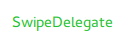
SwipeDelegate
consists of six visual items:
background
,
contentItem
,
indicator
,
swipe.left
,
swipe.right
,和
swipe.behind
.
import QtQuick
import QtQuick.Controls.Basic
SwipeDelegate {
    id: control
    text: qsTr("SwipeDelegate")
    Component {
        id: component
        Rectangle {
            color: SwipeDelegate.pressed ? "#333" : "#444"
            width: parent.width
            height: parent.height
            clip: true
            Label {
                text: qsTr("Press me!")
                color: "#21be2b"
                anchors.centerIn: parent
            }
        }
    }
    swipe.left: component
    swipe.right: component
    contentItem: Text {
        text: control.text
        font: control.font
        color: control.enabled ? (control.down ? "#17a81a" : "#21be2b") : "#bdbebf"
        elide: Text.ElideRight
        verticalAlignment: Text.AlignVCenter
        Behavior on x {
            enabled: !control.down
            NumberAnimation {
                easing.type: Easing.InOutCubic
                duration: 400
            }
        }
    }
}
SwipeView can have a visual background item. The navigation is implemented by the contentItem .
import QtQuick
import QtQuick.Controls.Basic
SwipeView {
    id: control
    background: Rectangle {
        color: "#eeeeee"
    }
}
Switch consists of three visual items: background , contentItem and indicator .

import QtQuick
import QtQuick.Controls.Basic
Switch {
    id: control
    text: qsTr("Switch")
    indicator: Rectangle {
        implicitWidth: 48
        implicitHeight: 26
        x: control.leftPadding
        y: parent.height / 2 - height / 2
        radius: 13
        color: control.checked ? "#17a81a" : "#ffffff"
        border.color: control.checked ? "#17a81a" : "#cccccc"
        Rectangle {
            x: control.checked ? parent.width - width : 0
            width: 26
            height: 26
            radius: 13
            color: control.down ? "#cccccc" : "#ffffff"
            border.color: control.checked ? (control.down ? "#17a81a" : "#21be2b") : "#999999"
        }
    }
    contentItem: Text {
        text: control.text
        font: control.font
        opacity: enabled ? 1.0 : 0.3
        color: control.down ? "#17a81a" : "#21be2b"
        verticalAlignment: Text.AlignVCenter
        leftPadding: control.indicator.width + control.spacing
    }
}
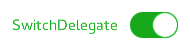
SwitchDelegate consists of three visual items: background , contentItem and indicator .
import QtQuick
import QtQuick.Controls.Basic
SwitchDelegate {
    id: control
    text: qsTr("SwitchDelegate")
    checked: true
    contentItem: Text {
        rightPadding: control.indicator.width + control.spacing
        text: control.text
        font: control.font
        opacity: enabled ? 1.0 : 0.3
        color: control.down ? "#17a81a" : "#21be2b"
        elide: Text.ElideRight
        verticalAlignment: Text.AlignVCenter
    }
    indicator: Rectangle {
        implicitWidth: 48
        implicitHeight: 26
        x: control.width - width - control.rightPadding
        y: parent.height / 2 - height / 2
        radius: 13
        color: control.checked ? "#17a81a" : "transparent"
        border.color: control.checked ? "#17a81a" : "#cccccc"
        Rectangle {
            x: control.checked ? parent.width - width : 0
            width: 26
            height: 26
            radius: 13
            color: control.down ? "#cccccc" : "#ffffff"
            border.color: control.checked ? (control.down ? "#17a81a" : "#21be2b") : "#999999"
        }
    }
    background: Rectangle {
        implicitWidth: 100
        implicitHeight: 40
        visible: control.down || control.highlighted
        color: control.down ? "#bdbebf" : "#eeeeee"
    }
}
TabBar consists of two visual items: background ,和 contentItem .

import QtQuick
import QtQuick.Controls.Basic
TabBar {
    id: control
    background: Rectangle {
        color: "#eeeeee"
    }
    TabButton {
        text: qsTr("Home")
    }
    TabButton {
        text: qsTr("Discover")
    }
    TabButton {
        text: qsTr("Activity")
    }
}
TabButton can be customized in the same manner as Button .
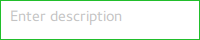
TextArea consists of a background 项。
import QtQuick
import QtQuick.Controls.Basic
TextArea {
    id: control
    placeholderText: qsTr("Enter description")
    background: Rectangle {
        implicitWidth: 200
        implicitHeight: 40
        border.color: control.enabled ? "#21be2b" : "transparent"
    }
}
TextField consists of a background 项。

import QtQuick
import QtQuick.Controls.Basic
TextField {
    id: control
    placeholderText: qsTr("Enter description")
    background: Rectangle {
        implicitWidth: 200
        implicitHeight: 40
        color: control.enabled ? "transparent" : "#353637"
        border.color: control.enabled ? "#21be2b" : "transparent"
    }
}
ToolBar consists of one visual item: background .

ToolBar {
    id: control
    background: Rectangle {
        implicitHeight: 40
        color: "#eeeeee"
        Rectangle {
            width: parent.width
            height: 1
            anchors.bottom: parent.bottom
            color: "transparent"
            border.color: "#21be2b"
        }
    }
    RowLayout {
        anchors.fill: parent
        ToolButton {
            text: qsTr("Undo")
        }
        ToolButton {
            text: qsTr("Redo")
        }
    }
}
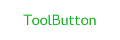
ToolButton consists of two visual items: background and contentItem .
import QtQuick
import QtQuick.Controls.Basic
ToolButton {
    id: control
    text: qsTr("ToolButton")
    width: 120
    contentItem: Text {
        text: control.text
        font: control.font
        opacity: enabled ? 1.0 : 0.3
        color: control.down ? "#17a81a" : "#21be2b"
        horizontalAlignment: Text.AlignHCenter
        verticalAlignment: Text.AlignVCenter
        elide: Text.ElideRight
    }
    background: Rectangle {
        implicitWidth: 40
        implicitHeight: 40
        color: Qt.darker("#33333333", control.enabled && (control.checked || control.highlighted) ? 1.5 : 1.0)
        opacity: enabled ? 1 : 0.3
        visible: control.down || (control.enabled && (control.checked || control.highlighted))
    }
}
ToolSeparator consists of two visual items: background and contentItem .

ToolBar {
    RowLayout {
        anchors.fill: parent
        ToolButton {
            text: qsTr("Action 1")
        }
        ToolButton {
            text: qsTr("Action 2")
        }
        ToolSeparator {
            padding: vertical ? 10 : 2
            topPadding: vertical ? 2 : 10
            bottomPadding: vertical ? 2 : 10
            contentItem: Rectangle {
                implicitWidth: parent.vertical ? 1 : 24
                implicitHeight: parent.vertical ? 24 : 1
                color: "#c3c3c3"
            }
        }
        ToolButton {
            text: qsTr("Action 3")
        }
        ToolButton {
            text: qsTr("Action 4")
        }
        Item {
            Layout.fillWidth: true
        }
    }
}
ToolTip consists of two visual items: background and contentItem .
import QtQuick
import QtQuick.Controls.Basic
ToolTip {
    id: control
    text: qsTr("A descriptive tool tip of what the button does")
    contentItem: Text {
        text: control.text
        font: control.font
        color: "#21be2b"
    }
    background: Rectangle {
        border.color: "#21be2b"
    }
}
注意:
to customize the
attached ToolTip
, it must be provided as part of
your own style
. To do a one-off customization of a
ToolTip
,见
Custom Tool Tips
.
Tumbler consists of three visual items: background , contentItem ,和 delegate .
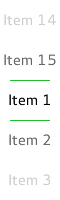
import QtQuick
import QtQuick.Controls.Basic
Tumbler {
    id: control
    model: 15
    background: Item {
        Rectangle {
            opacity: control.enabled ? 0.2 : 0.1
            border.color: "#000000"
            width: parent.width
            height: 1
            anchors.top: parent.top
        }
        Rectangle {
            opacity: control.enabled ? 0.2 : 0.1
            border.color: "#000000"
            width: parent.width
            height: 1
            anchors.bottom: parent.bottom
        }
    }
    delegate: Text {
        text: qsTr("Item %1").arg(modelData + 1)
        font: control.font
        horizontalAlignment: Text.AlignHCenter
        verticalAlignment: Text.AlignVCenter
        opacity: 1.0 - Math.abs(Tumbler.displacement) / (control.visibleItemCount / 2)
        required property var modelData
        required property int index
    }
    Rectangle {
        anchors.horizontalCenter: control.horizontalCenter
        y: control.height * 0.4
        width: 40
        height: 1
        color: "#21be2b"
    }
    Rectangle {
        anchors.horizontalCenter: control.horizontalCenter
        y: control.height * 0.6
        width: 40
        height: 1
        color: "#21be2b"
    }
}
If you want to define your own contentItem, use either a ListView or PathView as the root item. For a wrapping Tumbler, use PathView :
Tumbler {
    id: tumbler
    contentItem: PathView {
        id: pathView
        model: tumbler.model
        delegate: tumbler.delegate
        clip: true
        pathItemCount: tumbler.visibleItemCount + 1
        preferredHighlightBegin: 0.5
        preferredHighlightEnd: 0.5
        dragMargin: width / 2
        path: Path {
            startX: pathView.width / 2
            startY: -pathView.delegateHeight / 2
            PathLine {
                x: pathView.width / 2
                y: pathView.pathItemCount * pathView.delegateHeight - pathView.delegateHeight / 2
            }
        }
        property real delegateHeight: tumbler.availableHeight / tumbler.visibleItemCount
    }
}
For a non-wrapping Tumbler, use ListView :
Tumbler {
    id: tumbler
    contentItem: ListView {
        model: tumbler.model
        delegate: tumbler.delegate
        snapMode: ListView.SnapToItem
        highlightRangeMode: ListView.StrictlyEnforceRange
        preferredHighlightBegin: height / 2 - (height / tumbler.visibleItemCount / 2)
        preferredHighlightEnd: height / 2 + (height / tumbler.visibleItemCount / 2)
        clip: true
    }
}
