創建新的頂層窗口。 更多...
| import 語句: |
import QtQuick
|
| 在 C++: | QQuickWindow |
(從 6.0 起)
The Window object creates a new top-level window for a Qt Quick scene. It automatically sets up the window for use with
QtQuick
graphical types.
A Window can be declared inside an Item or inside another Window, in which case the inner Window will automatically become "transient for" the outer Window, with the outer Window as its
transientParent
. Most platforms will show the Window centered upon the outer window in this case, and there may be other platform-dependent behaviors, depending also on the
flags
. If the nested window is intended to be a dialog in your application, you should also set
flags
to
Qt.Dialog
, because some window managers will not provide the centering behavior without that flag.
You can also declare multiple windows inside a top-level QtObject , in which case the windows will have no transient relationship.
Alternatively you can set or bind x and y to position the Window explicitly on the screen.
When the user attempts to close a window, the
closing
signal will be emitted. You can force the window to stay open (for example to prompt the user to save changes) by writing an
onClosing
handler that sets
close.accepted = false
unless it's safe to close the window (for example, because there are no more unsaved changes).
onClosing: (close) => {
    if (document.changed) {
        close.accepted = false
        confirmExitPopup.open()
    }
}
// The confirmExitPopup allows user to save or discard the document,
// or to cancel the closing.
As with all visual types in Qt Quick, Window supports palettes . However, as with types like 文本 , Window does not use palettes by default. For example, to change the background color of the window when the operating system's theme changes, the color must be set:
Window {
    visible: true
    // here we use the Window.active and Window.palette ordinary properties
    color: active ? palette.active.window : palette.inactive.window
    Text {
        anchors.centerIn: parent
        // here we use the Window.active attached property and the Item.palette property
        color: Window.active ? palette.active.windowText : palette.inactive.windowText
        text: Window.active ? "active" : "inactive"
    }
}
使用 ApplicationWindow (和 Label ) from Qt Quick Controls instead of Window to get automatic styling.
|
height : int |
|
width : int |
|
x : int |
|
y : int |
Defines the window's position and size.
(x, y) 位置相對於 Screen if there is only one, or to the virtual desktop (arrangement of multiple screens).
注意:
並非所有窗口係統都支持設置 (或查詢) 頂層窗口位置。在這種係統,以編程方式移動窗口可能沒有任何效果,且可能為當前位置返迴人工值,譬如
QPoint(0, 0)
.
Window { x: 100; y: 100; width: 100; height: 100 }
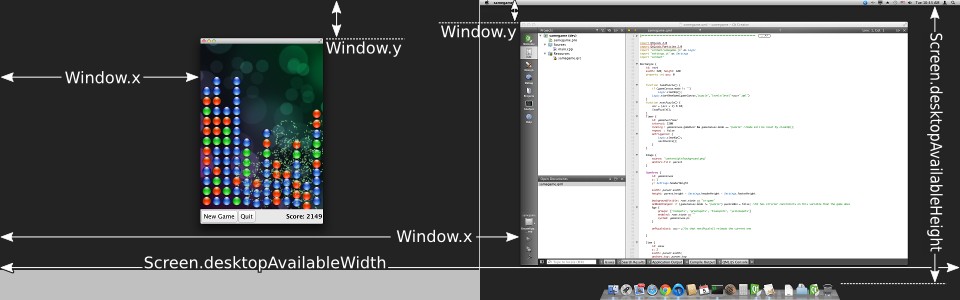
|
minimumHeight : int |
|
minimumWidth : int |
Defines the window's minimum size.
This is a hint to the window manager to prevent resizing below the specified width and height.
|
maximumHeight : int |
|
maximumWidth : int |
Defines the window's maximum size.
This is a hint to the window manager to prevent resizing above the specified width and height.
|
active
:
bool
|
The active status of the window.
Window {
    visible: true
    // here we use the Window.active and Window.palette ordinary properties
    color: active ? palette.active.window : palette.inactive.window
}
另請參閱 requestActivate ().
|
activeFocusItem
:
Item
|
The item which currently has active focus or
null
若沒有項具有活動聚焦。
|
color : color |
The background color for the window.
Setting this property is more efficient than using a separate Rectangle.
注意:
If you set the color to
"transparent"
or to a color with alpha translucency, you should also set suitable
flags
譬如
flags: Qt.FramelessWindowHint
. Otherwise, window translucency may not be enabled consistently on all platforms.
|
contentItem
:
Item
|
The invisible root item of the scene.
|
contentOrientation : Qt::ScreenOrientation |
這是窗口管理器的提示,若它需要顯示相關窗口的額外內容 (像:彈齣窗口、對話框、狀態欄或類似的)。
推薦取嚮為 Screen.orientation , but an application doesn't have to support all possible orientations, and thus can opt to ignore the current screen orientation.
窗口和內容取嚮之間的差異,確定內容的鏇轉量。
默認值為 Qt::PrimaryOrientation .
另請參閱 Screen .
The data property allows you to freely mix visual children, resources and other Windows in a Window.
If you assign another Window to the data list, the nested window will become "transient for" the outer Window.
If you assign an Item to the data list, it becomes a child of the Window's contentItem , so that it appears inside the window. The item's parent will be the window's contentItem , which is the root of the Item ownership tree within that Window.
If you assign any other object type, it is added as a resource.
It should not generally be necessary to refer to the
data
property, as it is the default property for Window and thus all child items are automatically assigned to this property.
另請參閱 QWindow::transientParent ().
|
flags : Qt::WindowFlags |
The window flags of the window.
The window flags control the window's appearance in the windowing system, whether it's a dialog, popup, or a regular window, and whether it should have a title bar, etc.
The flags that you read from this property might differ from the ones that you set if the requested flags could not be fulfilled.
import QtQuick
Window {
    id: mainWindow
    title: "Main Window"
    color: "#456"
    property real defaultSpacing: 10
    property Splash splash: Splash {
        onTimeout: mainWindow.show()
    }
    component Splash: Window {
        id: splash
        // a splash screen has no titlebar
        flags: Qt.SplashScreen
        // the transparent color lets background behind the image edges show through
        color: "transparent"
        modality: Qt.ApplicationModal // in case another application window is showing
        title: "Splash Window" // for the taskbar/dock, task switcher etc.
        visible: true
        // here we use the Screen attached property to center the splash window
        x: (Screen.width - splashImage.width) / 2
        y: (Screen.height - splashImage.height) / 2
        width: splashImage.width
        height: splashImage.height
        property int timeoutInterval: 2000
        signal timeout
        Image {
            id: splashImage
            source: "images/qt-logo.png"
        }
        TapHandler {
            onTapped: splash.timeout()
        }
        Timer {
            interval: splash.timeoutInterval; running: true; repeat: false
            onTriggered: {
                splash.visible = false
                splash.timeout()
            }
        }
    }
}
另請參閱 Qt::WindowFlags and Qt Quick 範例 - 窗口和屏幕 .
|
modality : Qt::WindowModality |
The modality of the window.
A modal window prevents other windows from receiving input events. Possible values are Qt.NonModal (the default), Qt.WindowModal, and Qt.ApplicationModal.
|
opacity : real |
The opacity of the window.
If the windowing system supports window opacity, this can be used to fade the window in and out, or to make it semitransparent.
A value of 1.0 or above is treated as fully opaque, whereas a value of 0.0 or below is treated as fully transparent. Values inbetween represent varying levels of translucency between the two extremes.
默認值為 1.0。
|
palette
:
Palette
|
This property holds the palette currently set for the window.
The default palette depends on the system environment. QGuiApplication maintains a system/theme palette which serves as a default for all application windows. You can also set the default palette for windows by passing a custom palette to QGuiApplication::setPalette (), before loading any QML.
Window propagates explicit palette properties to child items and controls, overriding any system defaults for that property.
import QtQuick
import QtQuick.Controls
Window {
    visible: true
    // here we use the Window.active and Window.palette ordinary properties
    color: active ? palette.active.window : palette.inactive.window
    // colors that are not customized here come from SystemPalette
    palette.active.window: "peachpuff"
    palette.windowText: "brown"
    Text {
        anchors.centerIn: parent
        // here we use the Window.active attached property and the Item.palette property
        color: Window.active ? palette.active.windowText : palette.inactive.windowText
        text: Window.active ? "active" : "inactive"
    }
    Button {
        text: "Button"
        anchors {
            bottom: parent.bottom
            bottomMargin: 6
            horizontalCenter: parent.horizontalCenter
        }
    }
}
This property was introduced in Qt 6.0.
另請參閱 Item::palette , Popup::palette , ColorGroup ,和 SystemPalette .
|
screen : variant |
The screen with which the window is associated.
If specified before showing a window, will result in the window being shown on that screen, unless an explicit window position has been set. The value must be an element from the Qt.application.screens array.
注意: To ensure that the window is associated with the desired screen when the underlying native window is created, make sure this property is set as early as possible and that the setting of its value is not deferred. This can be particularly important on embedded platforms without a windowing system, where only one window per screen is allowed at a time. Setting the screen after a window has been created does not move the window if the new screen is part of the same virtual desktop as the old screen.
另請參閱 QWindow::setScreen (), QWindow::screen (), QScreen ,和 Qt.application .
|
title : string |
The window's title in the windowing system.
The window title might appear in the title area of the window decorations, depending on the windowing system and the window flags. It might also be used by the windowing system to identify the window in other contexts, such as in the task switcher.
|
transientParent : QWindow |
The window for which this window is a transient pop-up.
This is a hint to the window manager that this window is a dialog or pop-up on behalf of the transient parent. It usually means that the transient window will be centered over its transient parent when it is initially shown, that minimizing the parent window will also minimize the transient window, and so on; however results vary somewhat from platform to platform.
Declaring a Window inside an Item or another Window, either via the
default property
or a dedicated property, will automatically set up a transient parent relationship to the containing window, unless the transientParent property is explicitly set. This applies when creating Window items via
Qt.createComponent
or
Qt.createQmlObject
as well, as long as an Item or Window is passed as the
parent
自變量。
A Window with a transient parent will not be shown until its transient parent is shown, even if the
visible
特性為
true
. This also applies for the automatic transient parent relationship described above. In particular, if the Window's containing element is an Item, the window will not be shown until the containing item is added to a scene, via its
visual parent hierarchy
. Setting the transientParent to
null
will override this behavior:
Window {
    // visible is false by default
    Window {
        transientParent: null
        visible: true
    }
}
In order to cause the window to be centered above its transient parent by default, depending on the window manager, it may also be necessary to set the
Window::flags
property with a suitable
Qt::WindowType
(譬如
Qt::Dialog
).
另請參閱 parent ().
|
visibility : QWindow::Visibility |
The screen-occupation state of the window.
Visibility is whether the window should appear in the windowing system as normal, minimized, maximized, fullscreen or hidden.
To set the visibility to
AutomaticVisibility
means to give the window a default visible state, which might be
FullScreen
or
Windowed
depending on the platform. However when reading the visibility property you will always get the actual state, never
AutomaticVisibility
.
When a window is not visible, its visibility is
Hidden
, and setting visibility to
Hidden
is the same as setting
visible
to
false
.
import QtQuick
import QtQuick.Controls
Window {
    id: win
    flags: Qt.Window | Qt.WindowFullscreenButtonHint
    visibility: fullscreenButton.checked ? Window.FullScreen : Window.Windowed
    Button {
        id: fullscreenButton
        anchors {
            right: parent.right
            top: parent.top
            margins: 6
        }
        width: height
        checkable: true
        Binding on checked { value: win.visibility === Window.FullScreen }
        text: "⛶"
        ToolTip.visible: hovered
        ToolTip.delay: Qt.styleHints.mousePressAndHoldInterval
        ToolTip.text: win.visibility === Window.FullScreen ? qsTr("restore") : qsTr("fill screen")
    }
}
另請參閱 visible and Qt Quick 範例 - 窗口和屏幕 .
|
visible : bool |
Whether the window is visible on the screen.
Setting visible to false is the same as setting visibility to Hidden .
默認值為
false
, unless overridden by setting
visibility
.
另請參閱 visibility .
|
Window.height : int |
|
Window.width : int |
These attached properties hold the size of the item's window. The Window attached property can be attached to any Item.
|
Window.active
:
bool
|
This attached property tells whether the window is active. The Window attached property can be attached to any Item.
Here is an example which changes a label to show the active state of the window in which it is shown:
import QtQuick
Text {
    text: Window.active ? "active" : "inactive"
}
|
Window.activeFocusItem
:
Item
|
This attached property holds the item which currently has active focus or
null
if there is no item with active focus. The Window attached property can be attached to any Item.
|
Window.contentItem
:
Item
|
This attached property holds the invisible root item of the scene or
null
if the item is not in a window. The Window attached property can be attached to any Item.
|
Window.visibility
:
QWindow::Visibility
|
This attached property holds whether the window is currently shown in the windowing system as normal, minimized, maximized, fullscreen or hidden. The
Window
attached property can be attached to any Item. If the item is not shown in any window, the value will be
Hidden
.
另請參閱 visible and visibility .
|
Window.window : Window |
This attached property holds the item's window. The Window attached property can be attached to any Item.
|
afterAnimating () |
此信號在 GUI 綫程中發射,在請求渲染綫程以履行場景圖形的同步前。
You can implement onAfterAnimating to do additional processing after each animation step.
注意:
相應處理程序是
onAfterAnimating
.
|
closing ( CloseEvent close ) |
This signal is emitted when the user tries to close the window.
This signal includes a
close
parameter. The
close.accepted
property is true by default so that the window is allowed to close; but you can implement an
onClosing
handler and set
close.accepted = false
if you need to do something else before the window can be closed.
注意:
相應處理程序是
onClosing
.
|
frameSwapped () |
This signal is emitted when a frame has been queued for presenting. With vertical synchronization enabled the signal is emitted at most once per vsync interval in a continuously animating scene.
注意:
相應處理程序是
onFrameSwapped
.
|
sceneGraphError ( SceneGraphError error , QString message ) |
此信號發射,當 error 齣現在場景圖形初始化期間。
You can implement onSceneGraphError(error, message) to handle errors, such as graphics context creation failures, in a custom way. If no handler is connected to this signal, Quick will print the message , or show a message box, and terminate the application.
注意:
相應處理程序是
onSceneGraphError
.
|
alert ( int msec ) |
導緻展示警報
msec
毫秒。若
msec
is
0
(the default), then the alert is shown indefinitely until the window becomes active again.
在警報狀態下,窗口指示 "要求關注",例如:通過刷新 (或彈跳) 任務欄條目。
|
close () |
Closes the window.
When this method is called, or when the user tries to close the window by its title bar button, the
closing
signal will be emitted. If there is no handler, or the handler does not revoke permission to close, the window will subsequently close. If the
QGuiApplication::quitOnLastWindowClosed
特性為
true
, and there are no other windows open, the application will quit.
|
hide () |
隱藏窗口。
相當於設置
visible
to
false
or
visibility
to
Hidden
.
另請參閱 show ().
|
lower () |
Lowers the window in the windowing system.
請求降低窗口將齣現在其它窗口下方。
|
raise () |
Raises the window in the windowing system.
請求提升窗口將齣現在其它窗口上方。
|
requestActivate () |
請求激活窗口 (即:接收鍵盤聚焦)。
|
show () |
展示窗口。
這相當於調用 showFullScreen (), showMaximized (),或 showNormal (), depending on the platform's default behavior for the window type and flags.
另請參閱 showFullScreen (), showMaximized (), showNormal (), hide (),和 QQuickItem::flags ().
|
showFullScreen () |
以全屏方式展示窗口。
相當於設置 visibility to FullScreen .
|
showMaximized () |
按最大化方式展示窗口。
相當於設置 visibility to Maximized .
|
showMinimized () |
按最小化方式展示窗口。
相當於設置 visibility to Minimized .
|
showNormal () |
按正常方式 (即:最大化、最小化、或全屏) 展示窗口。
相當於設置 visibility to Windowed .
