Printing a 2D or 3D graph.
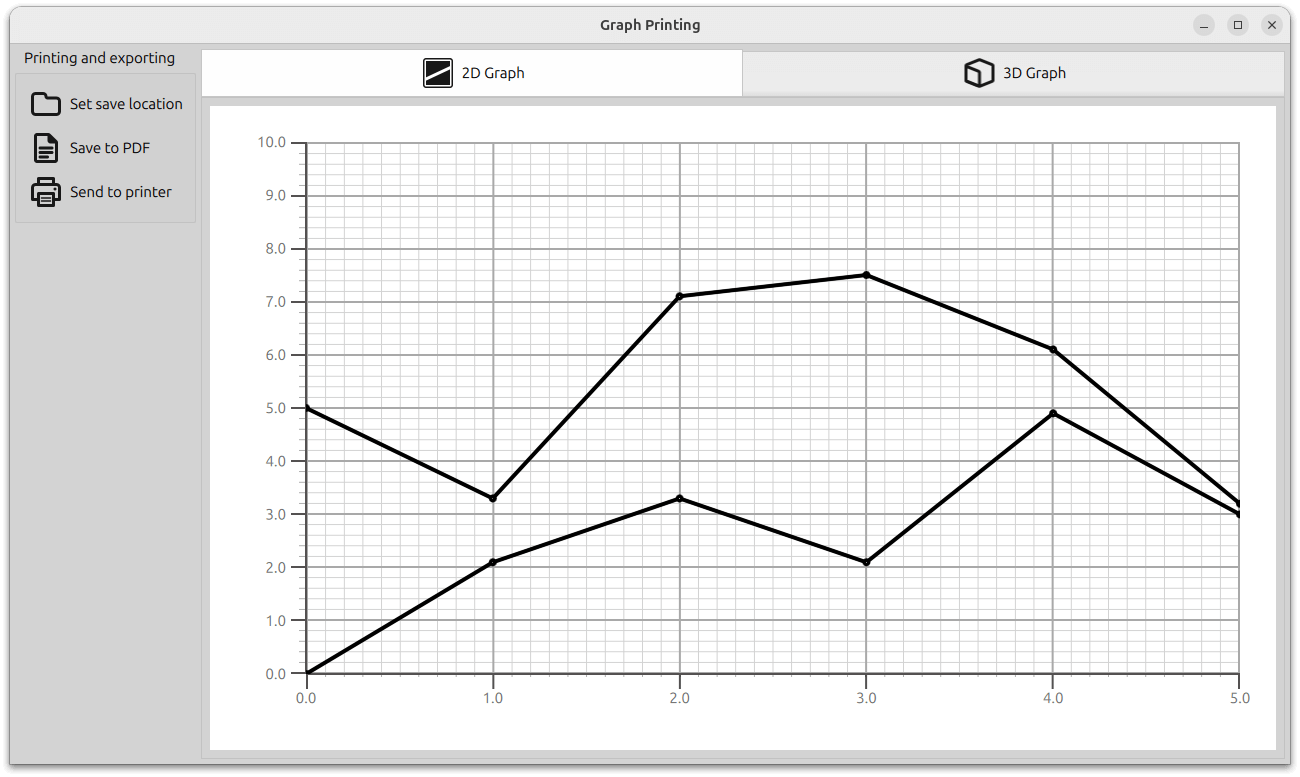
The Graph Printing example demonstrates how to print or export to PDF 2D and 3D graphs.
要运行范例从 Qt Creator ,打开 欢迎 模式,然后选择范例从 范例 。更多信息,见 Qt Creator:教程:构建并运行 .
The printing functionality is implemented in the
GraphPrinter
class. The class exposes these functions:
generatePDF
function, which works as follows.
The function instantiates QPdfWriter with a "graph.pdf" file pointed in the specified folder. The function also specifies the options for the exported PDF file: title , resolution , page size ,和 margins .
const QFile file = QFile(path.toLocalFile() + QStringLiteral("/graph.pdf"));
QPdfWriter writer(file.fileName());
writer.setResolution(90);
writer.setTitle("Graph");
writer.setPageSize(QPageSize(image.size()));
writer.setPageMargins(QMarginsF(0, 0, 0, 0));
writer.newPage();
The function creates a QPainter referring to the previously created QPdfWriter .
To ensure the graph is printed correctly, it is scaled to the painter's viewport size with the original aspect ratio
The painter's rendering hint is set to lossless image rendering. After this, the function draws the image to the PDF file.
QPainter painter(&writer);
const QImage finalImage = image.scaled(painter.viewport().size(), Qt::KeepAspectRatio);
painter.setRenderHint(QPainter::LosslessImageRendering);
painter.drawImage(finalImage.rect(), finalImage);
The function returns a status message to be displayed in the application's message dialog, including the full path to the exported file.
getPrinters
function returns a list of available printers.
QStringList GraphPrinter::getPrinters()
{

return


QPrinterInfo


::

availablePrinterNames();
}
print
function, which works like the
generatePDF
function, but creates a
QPainter
referring a QPrinter instance:
QString GraphPrinter::print(const QImage &image, const QString printerName)
{

QPrinterInfo

printInfo

=


QPrinterInfo


::

printerInfo(printerName);

if

(printInfo

.

isNull())

return

QLatin1String(

"%1 is not a valid printer"

)

.

arg(printerName);

QPrinter

printer(printInfo

,


QPrinter


::

HighResolution);
printer

.

setOutputFormat(

QPrinter


::

NativeFormat);


QPainter


painter(

&

printer);

const


QImage


finalImage

=

image

.

scaled(painter

.

viewport()

.

size()

,


Qt


::

KeepAspectRatio);
painter

.

setRenderHint(


QPainter


::

LosslessImageRendering);
painter

.

drawImage(finalImage

.

rect()

,

finalImage);

return

QLatin1String(

"Printed to %1"

)

.

arg(printerName);
}
The function returns a status message to be displayed in the application's message dialog.
In addition to the application setup code, the
main.cpp
file contains code that creates a new instance of the
GraphPrinter class
and makes it reachable from the QML code.
GraphPrinter graphPrinter;
viewer.rootContext()->setContextProperty("graphPrinter", &graphPrinter);
The 2D and 3D graphs are laid out in a Stacklayout. Users can navigate it with a TabBar.
TabBar {
    id: tabBar
    anchors.left: parent.left
    anchors.right: parent.right
    TabButton {
        text: "2D Graph"
        implicitHeight: 48
        icon.source: checked ? "flatten_square_fill.svg" : "flatten.svg"
        icon.height: 36
        icon.width: 36
    }
    TabButton {
        text: "3D Graph"
        implicitHeight: 48
        icon.source: checked ? "box_left_fill.svg" : "box_left.svg"
        icon.height: 36
        icon.width: 36
    }
}
Frame {
    id: tabFrame
    anchors.left: parent.left
    anchors.right: parent.right
    anchors.top: tabBar.bottom
    anchors.bottom: parent.bottom
    StackLayout {
        id: stackLayout
        anchors.fill: parent
        currentIndex: tabBar.currentIndex
        Graph2D {
            id: linegraph
        }
        Graph3D {
            id: bargraph
        }
    }
}
The FolderDialog component is used to select a folder for saving the exported file. This component has no visual representation in the application layout, but its API is accessible from the current QML file.
The
 button invokes a folder dialog.
FolderDialog {
    id: dialog
    property bool folderset: false
    onAccepted: {
        folderset = true
        message.title = "Folder Set"
        message.text = "Folder set to " + selectedFolder.toString().replace(/^(file:\/{3})/, "")
        message.open()
    }
}
...
Button {
    id: setFolderButton
    ...
onClicked: dialog.open()
}
A custom printing dialog is created for selecting a printer, and is triggered with the
 button. The Dialog retrieves the list of available printers and displays them in a list view.
Dialog {
    id: printerDialog
    anchors.centerIn: parent
    contentHeight: printerListView.height
    contentWidth: printerListView.width
    title: qsTr("Available Printers")
    modal: true
    onOpened: {
        printerModel.clear()
        var printers = graphPrinter.getPrinters()
        printers.forEach((x, i) => printerModel.append({
                                                           "name": x
                                                       }))
    }
...
contentItem: Rectangle {
    id: printerItem
    height: printerListView.height
    width: printerListView.width
    color: mainView.item.theme.plotAreaBackgroundColor
    ListView {
        id: printerListView
        height: 100
        width: 200
        clip: true
        model: printerModel
        delegate: printerDelegate
        highlight: Rectangle {
            color: mainView.item.theme.grid.subColor
        }
    }
}
The
 button triggers the PDF export, if a folder has been already selected.
When either PDF export or printing is triggered, the following code is executed:
grabToImage
method. The current graph is the Stacklayout's item at the current index.
grabToImage
parameters, we specify the callback as the
generatePDF
or
print
function in the
GraphPrinter
类。
PDF export:
onPressed: {
    if (!dialog.folderset) {
        message.title = "No Folder Set"
        message.text = "Please select folder first"
        message.open()
    } else {
        mainView.prepareForPrint()
        mainView.item.grabToImage(function (result) {
            message.title = "Save PDF"
            message.text = "PDF saved to " + graphPrinter.generatePDF(
                        dialog.currentFolder, result.image)
            message.open()
        }, mainView.outputsize)
    }
}
onReleased: {
    mainView.cleanAfterPrint()
}
Print:
onAccepted: {
    var selectedPrinter = printerModel.get(printerListView.currentIndex)
    mainView.prepareForPrint()
    mainView.item.grabToImage(function (result) {
        message.title = "Print"
        message.text = graphPrinter.print(result.image,
                                          selectedPrinter.name)
        message.open()
    }, mainView.outputsize)
}
onClosed: {
    mainView.cleanAfterPrint()
}
For the size, the code makes the image render at 4x the actual resolution. For 3D graphs, the item must also be expanded for the duration of printing:
function prepareForPrint() {
    if (stackLayout.currentIndex === 1) {
        outputsize = Qt.size(bargraph.width * 4, bargraph.height * 4)
        // resize the bar graph to match the PDF output size
        item.width = outputsize.width
        item.height = outputsize.height
    } else {
        outputsize = Qt.size(linegraph.width * 4, linegraph.height * 4)
    }
}
function cleanAfterPrint() {
    if (stackLayout.currentIndex === 1) {
        // resize the bar graph back to the actual visual size
        item.width = mainView.width
        item.height = mainView.height
    }
}
