The Qt Quick for Android API examples are provided as Android Studio projects. The project folders are found in your Qt install location.
For example, under the default Windows install path, they are found here:
C:\Qt\Examples\Qt-/1\platforms\android
This example contains a QML project that you can import into Android Studio with the Qt Tools for Android Studio plugin and Java and Kotlin projects that use the QML project as a View by utilizing the QtQuickView API.
For more information on how QML works, see the Qt QML . This documentation will focus on how a QML component is embedded into Java- and Kotlin-based Android applications.
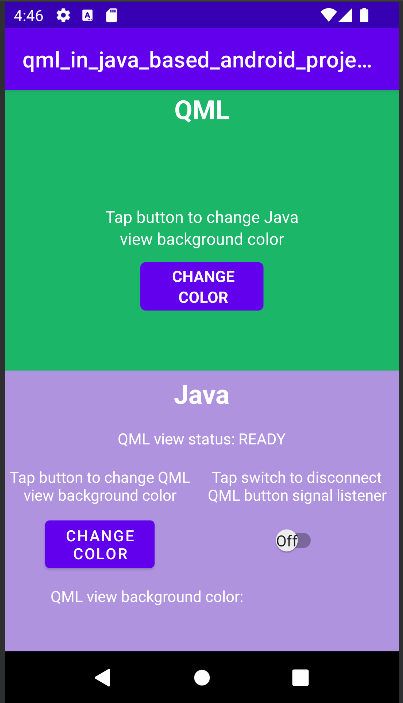
First, we look at the
MainActivity
's onCreate() method of the Java and Kotlin projects.
对于基于 Java 的工程:
@Override
protected void onCreate(Bundle savedInstanceState) {
    super.onCreate(savedInstanceState);
    setContentView(R.layout.activity_main);
    m_getPropertyValueText = findViewById(R.id.getPropertyValueText);
    m_qmlStatus = findViewById(R.id.qmlStatusText);
    m_androidControlsLayout = findViewById(R.id.javaLinear);
    m_box = findViewById(R.id.qmlColorBox);
    m_switch = findViewById(R.id.disconnectQmlListenerSwitch);
    m_switch.setOnClickListener(view -> switchListener());
    m_qtQuickView = new QtQuickView(this);
    // Set status change listener for m_qmlView
    // listener implemented below in OnStatusChanged
    m_mainQmlContent.setStatusChangeListener(this);
    m_secondQmlContent.setStatusChangeListener(this);
    ViewGroup.LayoutParams params = new FrameLayout.LayoutParams(
            ViewGroup.LayoutParams.MATCH_PARENT, ViewGroup.LayoutParams.MATCH_PARENT);
    FrameLayout m_qmlFrameLayout = findViewById(R.id.qmlFrame);
    m_qmlFrameLayout.addView(m_qtQuickView, params);
    m_qtQuickView.loadContent(m_mainQmlContent);
    Button m_changeColorButton = findViewById(R.id.changeQmlColorButton);
    m_changeColorButton.setOnClickListener(view -> onClickListener());
    Button m_loadMainQmlButton = findViewById(R.id.loadMainQml);
    m_loadMainQmlButton.setOnClickListener(view -> loadMainQml());
    Button m_loadSecondQmlButton = findViewById(R.id.loadSecondQml);
    m_loadSecondQmlButton.setOnClickListener(view -> loadSecondQml());
    Button m_rotateQmlGridButton = findViewById(R.id.rotateQmlGridButton);
    m_rotateQmlGridButton.setOnClickListener(view -> rotateQmlGrid());
}
For a Kotlin-based project:
override fun onCreate(savedInstanceState: Bundle?) {
    super.onCreate(savedInstanceState)
    m_binding = ActivityMainBinding.inflate(layoutInflater)
    val view = m_binding.root
    setContentView(view)
    m_binding.disconnectQmlListenerSwitch.setOnClickListener { switchListener() }
    m_qtQuickView = QtQuickView(this)
    // Set status change listener for m_qmlView
    // listener implemented below in OnStatusChanged
    m_mainQmlContent.setStatusChangeListener(this)
    m_secondQmlContent.setStatusChangeListener(this)
    val params: ViewGroup.LayoutParams = FrameLayout.LayoutParams(
        ViewGroup.LayoutParams.MATCH_PARENT, ViewGroup.LayoutParams.MATCH_PARENT
    )
    m_binding.qmlFrame.addView(m_qtQuickView, params)
    m_qtQuickView!!.loadContent(m_mainQmlContent)
    m_binding.changeQmlColorButton.setOnClickListener { onClickListener() }
    m_binding.loadMainQml.setOnClickListener { loadMainQml() }
    m_binding.loadSecondQml.setOnClickListener { loadSecondQml() }
    m_binding.rotateQmlGridButton.setOnClickListener { rotateQmlGrid() }
}
注意: in the Kotlin project we use View binding to access the UI components of the application:
m_binding = ActivityMainBinding.inflate(layoutInflater)
val view = m_binding.root
setContentView(view)
Inside the
onCreate()
method, a previously declared variable
m_qtQuickView
is initialized with a new
QtQuickView
. This new instance of
QtQuickView
is created by giving it the Context of the Java/Kotlin Activity as an argument.
对于基于 Java 的工程:
m_qtQuickView = new QtQuickView(this);
For a Kotlin-based project:
m_qtQuickView = QtQuickView(this)
The
Main
and
Second
Java classes inherit from the
QtQuickViewContent
class. These classes are generated from the QML project that we've imported. In this example, these QML components are used to explain how to embed QML components into Android Projects.
对于基于 Java 的工程:
private final Main m_mainQmlContent = new Main();
private final Second m_secondQmlContent = new Second();
For a Kotlin-based project (initialized when declared):
private var m_mainQmlContent: Main = Main()
private val m_secondQmlContent: Second = Second()
The
m_mainQmlContent
is loaded into the
m_qtQuickView
透过
QtQuickView.loadContent()
method, which takes
QtQuickViewContent
作为自变量。
对于基于 Java 的工程:
m_qtQuickView.loadContent(m_mainQmlContent);
For a Kotlin-based project:
m_qtQuickView!!.loadContent(m_mainQmlContent)
The
m_qtQuickView
is added to Android FrameLayout ViewGroup with appropriate layout parameters.
对于基于 Java 的工程:
ViewGroup.LayoutParams params = new FrameLayout.LayoutParams(
        ViewGroup.LayoutParams.MATCH_PARENT, ViewGroup.LayoutParams.MATCH_PARENT);
FrameLayout m_qmlFrameLayout = findViewById(R.id.qmlFrame);
m_qmlFrameLayout.addView(m_qtQuickView, params);
For a Kotlin-based project:
val params: ViewGroup.LayoutParams = FrameLayout.LayoutParams(
    ViewGroup.LayoutParams.MATCH_PARENT, ViewGroup.LayoutParams.MATCH_PARENT
)
m_binding.qmlFrame.addView(m_qtQuickView, params)
To interact with the embedded QML component we implement the
QtQmlStatusChangeListener
interface and override the onStatusChanged method to get the loading status of the QtQuickViewContent currently being loaded into the
m_qtQuickView
.
对于基于 Java 的工程:
public class MainActivity extends AppCompatActivity implements
QtQmlStatusChangeListener{
    ...
}
For a Kotlin-based project:
class MainActivity : AppCompatActivity(), QtQmlStatusChangeListener{
    ...
}
The
onStatusChanged
实现。
对于基于 Java 的工程:
@Override
public void onStatusChanged(QtQmlStatus qtQmlStatus) {
    Log.i(TAG, "Status of QtQuickView: " + qtQmlStatus);
    // Show current QML View status in a textview
    m_qmlStatus.setText(getResources().getString(R.string.qml_view_status, m_statusNames.get(qtQmlStatus)));
    // Connect signal listener to "onClicked" signal from main.qml
    // addSignalListener returns int which can be used later to identify the listener
    if (qtQmlStatus == QtQmlStatus.READY && !m_switch.isChecked()) {
        m_qmlButtonSignalListenerId = m_mainQmlContent.connectOnClickedListener(
                (String name, Void v) -> {
                    Log.i(TAG, "QML button clicked");
                    m_androidControlsLayout.setBackgroundColor(Color.parseColor(
                            m_colors.getColor()
                    ));
                });
    }
}
For a Kotlin-based project:
override fun onStatusChanged(status: QtQmlStatus?) {
    Log.v(TAG, "Status of QtQuickView: $status")
    // Show current QML View status in a textview
    m_binding.qmlStatusText.text = resources.getString(R.string.qml_view_status, m_statusNames[status])
    // Connect signal listener to "onClicked" signal from main.qml
    // addSignalListener returns int which can be used later to identify the listener
    if (status == QtQmlStatus.READY && !m_binding.disconnectQmlListenerSwitch.isChecked) {
        m_qmlButtonSignalListenerId =
            m_mainQmlContent.connectOnClickedListener { _: String, _: Void? ->
                Log.i(TAG, "QML button clicked")
                m_binding.kotlinLinear.setBackgroundColor(
                    Color.parseColor(
                        m_colors.getColor()
                    )
                )
            }
    }
}
The
onStatusChanged
listener is set as the
statusChangeListener
的
m_mainQmlContent
and
m_secondQmlContent
with
QtQuickViewContent.setStatusChangeListener(QtQmlStatusChangeListener onStatusChanged())
方法。
对于基于 Java 的工程:
m_mainQmlContent.setStatusChangeListener(this);
m_secondQmlContent.setStatusChangeListener(this);
For a Kotlin-based project:
m_mainQmlContent.setStatusChangeListener(this)
m_secondQmlContent.setStatusChangeListener(this)
The overridden callback function
onStatusChanged()
receives
StatusChanged()
signal containing the current status (public Enum QtQmlStatus) of the loading of the current QtQuickViewContent into the
m_qtQuickView
. If this
QtQmlStatus
is confirmed to be
QtQmlStatus.READY
, we can start interacting with the QML view.
You can have multiple QtQuickViewContents in the imported QML project and switch the currently loaded content of the QtQuickView between them using the QtQuickView.loadContent() method, which takes a QtQuickViewContent as an argument. This will load the QtQuickViewContent that was given and unloads the previous one, if there is one.
对于基于 Java 的工程:
private void loadSecondQml() {
    m_qtQuickView.loadContent(m_secondQmlContent);
    // Reset box color and color text after component reload
    m_box.setBackgroundColor(Color.parseColor("#00ffffff"));
    m_getPropertyValueText.setText("");
}
private void loadMainQml() {
    m_qtQuickView.loadContent(m_mainQmlContent);
    // Reset box color and color text after component reload
    m_box.setBackgroundColor(Color.parseColor("#00ffffff"));
    m_getPropertyValueText.setText("");
}
For a Kotlin-based project:
private fun loadSecondQml() {
    m_qtQuickView!!.loadContent(m_secondQmlContent)
    // Reset box color and color text after component reload
    m_binding.qmlColorBox.setBackgroundColor(Color.parseColor("#00ffffff"))
    m_binding.getPropertyValueText.text = ""
}
private fun loadMainQml() {
    m_qtQuickView!!.loadContent(m_mainQmlContent)
    // Reset box color and color text after component reload
    m_binding.qmlColorBox.setBackgroundColor(Color.parseColor("#00ffffff"))
    m_binding.getPropertyValueText.text = ""
}
Getting and setting QML component property values happens through the methods described in the
Main.java
class. In this case we use the
m_mainQmlContent.setColorStringProperty()
and
m_mainQmlContent.getColorStringProperty()
methods. These methods are generated according to what properties the QML component includes.
对于基于 Java 的工程:
public void onClickListener() {
    // Set the QML view root object property "colorStringFormat" value to
    // color from Colors.getColor()
    m_mainQmlContent.setColorStringFormat(m_colors.getColor());
    String qmlBackgroundColor = m_mainQmlContent.getColorStringFormat();
    // Display the QML View background color code
    m_getPropertyValueText.setText(qmlBackgroundColor);
    // Display the QML View background color in a view
    // if qmlBackGroundColor is not null
    if (qmlBackgroundColor != null) {
        m_box.setBackgroundColor(Color.parseColor(qmlBackgroundColor));
    }
}
For a Kotlin-based project:
private fun onClickListener() {
    // Set the QML view root object property "colorStringFormat" value to
    // color from Colors.getColor()
    m_mainQmlContent.colorStringFormat = m_colors.getColor()
    val qmlBackgroundColor = m_mainQmlContent.colorStringFormat
    // Display the QML View background color code
    m_binding.getPropertyValueText.text = qmlBackgroundColor
    // Display the QML View background color in a view
    // if qmlBackgroundColor is not null
    if (qmlBackgroundColor != null) {
        m_binding.qmlColorBox.setBackgroundColor(Color.parseColor(qmlBackgroundColor))
    }
}
With the
m_mainQmlContent.setColorStringProperty()
method we set the
colorStringFormat
property value of the
m_mainQmlContent
a random color value that is fetched from the
Colors.java
(或
Colors.kt
) class.
The
m_mainQmlContent.getColorStringProperty()
method is used here to fetch the current background color of the root object of the m_mainQmlContent and then show it to the user on the Java/Kotlin Android side of the application.
m_secondQmlContent
拥有
Grid
QML component which we can rotate from the Java side with the generated
m_secondQmlContent.setGridRotation()
方法。
对于基于 Java 的工程:
private void rotateQmlGrid() {
    Integer previousGridRotation = m_secondQmlContent.getGridRotation();
    if (previousGridRotation != null) {
        m_secondQmlContent.setGridRotation(previousGridRotation + 45);
    }
}
For a Kotlin-based project:
private fun rotateQmlGrid() {
    val previousGridRotation = m_secondQmlContent.gridRotation
    if (previousGridRotation != null) {
        m_secondQmlContent.gridRotation = previousGridRotation + 45
    }
}
The
QtQuickViewContent
class offers a
connectSignalListener()
and
disconnectSignalListener()
methods which are used to connect and disconnect a signal listener/s between a signal/s that is/are declared in the QML component root object. The
QtQuickViewContent.connectSignalListener()
returns a unique signal listener id which we store and use later to identify and disconnect the listener.
Here we connect a signal listener to the
onClicked()
signal of the QML component.
对于基于 Java 的工程:
if (qtQmlStatus == QtQmlStatus.READY && !m_switch.isChecked()) {
    m_qmlButtonSignalListenerId = m_mainQmlContent.connectOnClickedListener(
            (String name, Void v) -> {
                Log.i(TAG, "QML button clicked");
                m_androidControlsLayout.setBackgroundColor(Color.parseColor(
                        m_colors.getColor()
                ));
            });
}
For a Kotlin-based project:
if (status == QtQmlStatus.READY && !m_binding.disconnectQmlListenerSwitch.isChecked) {
    m_qmlButtonSignalListenerId =
        m_mainQmlContent.connectOnClickedListener { _: String, _: Void? ->
            Log.i(TAG, "QML button clicked")
            m_binding.kotlinLinear.setBackgroundColor(
                Color.parseColor(
                    m_colors.getColor()
                )
            )
        }
}
The
onClicked()
signal is emitted every time the button on the QML component is clicked. That signal is then received by this listener and the background color of the layout holding the Android side of the application is set to a random color value fetched from the
Colors.java
类。
Next, the signal listener is disconnected using the
QtQuickViewContent.disconnectSignalListener()
method by giving it the unique signal listener id.
对于基于 Java 的工程:
m_mainQmlContent.disconnectSignalListener(m_qmlButtonSignalListenerId);
For a Kotlin-based project:
m_mainQmlContent.disconnectSignalListener(m_qmlButtonSignalListenerId)
