This Qt Quick based application shows how to use the API to capture a still image or video.
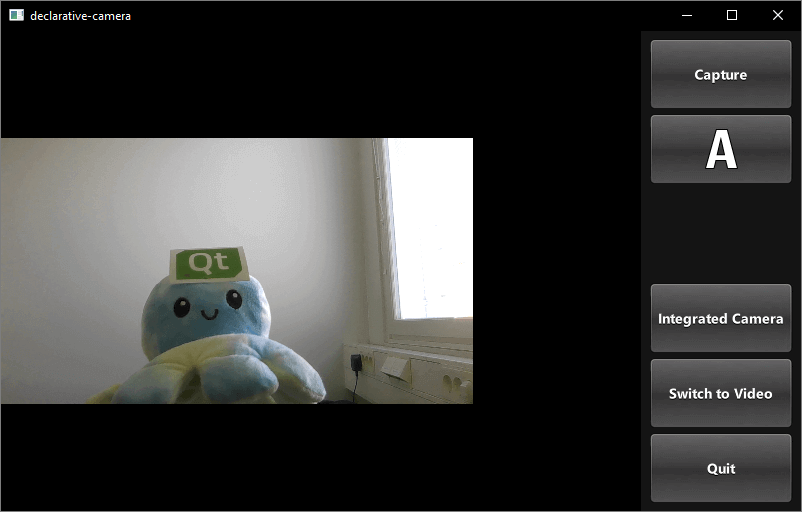
This example demonstrates how to access camera functions via QML. It shows how to change settings and capture images or video.
要運行範例從 Qt Creator ,打開 歡迎 模式,然後選擇範例從 範例 。更多信息,見 Qt Creator:教程:構建並運行 .
Most of the QML code in this example supports the user interface. Custom types that support the requirements have been implemented using existing Qt Quick controls.
The orientation and control layout state logic is encapsulated in a separate Item,
controlLayout
像這樣:
Item {
    id: controlLayout
    readonly property bool isMobile: Qt.platform.os === "android" || Qt.platform.os === "ios"
    readonly property bool isLandscape: Screen.desktopAvailableWidth >= Screen.desktopAvailableHeight
    property int buttonsWidth: state === "MobilePortrait" ? Screen.desktopAvailableWidth / 3.4 : 114
    states: [
        State {
            name: "MobileLandscape"
            when: controlLayout.isMobile && controlLayout.isLandscape
        },
        State {
            name: "MobilePortrait"
            when: controlLayout.isMobile && !controlLayout.isLandscape
        },
        State {
            name: "Other"
            when: !controlLayout.isMobile
        }
    ]
    onStateChanged: {
        console.log("State: " + controlLayout.state)
    }
}
The
stillControls
and
videoControls
objects both bind to the
state
and
buttonsWidth
properties of this Item, as shown in
stillControls
:
PhotoCaptureControls {
    id: stillControls
    state: controlLayout.state
    anchors.fill: parent
    buttonsWidth: controlLayout.buttonsWidth
    buttonsPanelPortraitHeight: cameraUI.buttonsPanelPortraitHeight
    buttonsPanelWidth: cameraUI.buttonsPanelLandscapeWidth
    captureSession: captureSession
    visible: (cameraUI.state === "PhotoCapture")
    onPreviewSelected: cameraUI.state = "PhotoPreview"
    onVideoModeSelected: cameraUI.state = "VideoCapture"
    previewAvailable: imageCapture.preview.length !== 0
}
To support debugging, a message about layout state change is logged.
Here is the portrait layout:
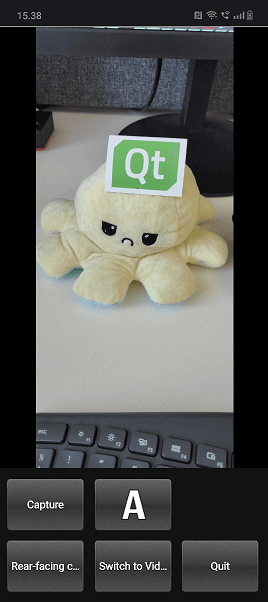
You can see the
state
property is initially set as
PhotoCapture
.
Then the
states
themselves are defined like so:
states: [
    State {
        name: "PhotoCapture"
        StateChangeScript {
            script: {
                camera.start()
            }
        }
    },
    State {
        name: "PhotoPreview"
    },
    State {
        name: "VideoCapture"
        StateChangeScript {
            script: {
                camera.start()
            }
        }
    },
    State {
        name: "VideoPreview"
        StateChangeScript {
            script: {
                camera.stop()
            }
        }
    }
]
Controls for capturing are implemented in
PhotoCaptureControls.qml
and VideoCaptureControls.qml. They each are based on a
FocusScope
that defines common buttons dimensions and margins that are used by the control buttons and then declares the buttons.
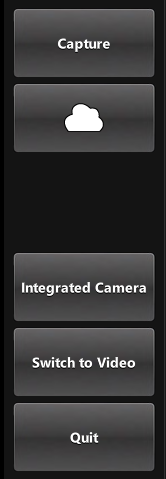
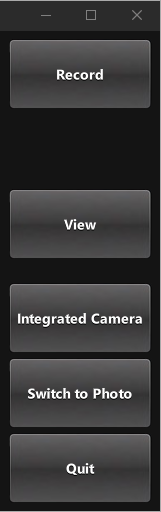
This generates a column on the right hand side of the screen which includes, listed top to bottom, the following controls:
Capture
or
Record
button, which initiates capturing.
capture properties
button that displays the icon of the current white balance mode selected and when pressed uses a pop-up to displays the following option's icons:
View
button, once something has been captured.
Switch To
button that displays the alternate capture mode (video or photo) depending on the current active selection and switches the mode when pressed.
Quit
button, that exits the application.
The button that triggers this is defined in CameraButton.qml: but its interaction with the camera is in the controls types, lets look at PhotoCaptureControls:
CameraButton {
    text: "Capture"
    implicitWidth: captureControls.buttonsWidth
    visible: captureControls.captureSession.imageCapture.readyForCapture
    onClicked: captureControls.captureSession.imageCapture.captureToFile("")
}
Implemented in
ZoomControl.qml
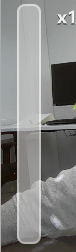
the ZoomControl type is based on an Item and creates a bar that represents the zoom level, which can also be dragged. It uses an exponential calculation method to determine the zoom factor given the position of the
grove
.
The bar is only visible if the initialZoom is greater than 1. This means the currently active camera has a zoom function.
Item {
    id : zoomControl
    property real currentZoom : 1
    property real maximumZoom : 1
    property real minimumZoom : 1
    signal zoomTo(real target)
    visible: zoomControl.maximumZoom > zoomControl.minimumZoom
    MouseArea {
        id : mouseArea
        anchors.fill: parent
        property real initialZoom : 0
        property real initialPos : 0
        onPressed: {
            initialPos = mouseY
            initialZoom = zoomControl.currentZoom
        }
        onPositionChanged: {
            if (pressed) {
                var target = initialZoom * Math.pow(5, (initialPos-mouseY)/zoomControl.height);
                target = Math.max(zoomControl.minimumZoom, Math.min(target, zoomControl.maximumZoom))
                zoomControl.zoomTo(target)
            }
        }
    }
    Item {
        id : bar
        x : 16
        y : parent.height/4
        width : 24
        height : parent.height/2
        Rectangle {
            anchors.fill: parent
            smooth: true
            radius: 8
            border.color: "white"
            border.width: 2
            color: "black"
            opacity: 0.3
        }
        Rectangle {
            id: groove
            x : 0
            y : parent.height * (1.0 - (zoomControl.currentZoom-zoomControl.minimumZoom) / (zoomControl.maximumZoom-zoomControl.minimumZoom))
            width: parent.width
            height: parent.height - y
            smooth: true
            radius: 8
            color: "white"
            opacity: 0.5
        }
        Text {
            id: zoomText
            anchors {
                left: bar.right; leftMargin: 16
            }
            y: Math.min(parent.height - height, Math.max(0, groove.y - height / 2))
            text: "x" + Math.round(zoomControl.currentZoom * 100) / 100
            font.bold: true
            color: "white"
            style: Text.Raised; styleColor: "black"
            opacity: 0.85
            font.pixelSize: 18
        }
    }
}
In PhotoCaptureControls.qml and VideoCaptureControls.qml the signal
zoomTo
will set the selected camera's
zoomFactor
property to the calculated
target
value, as well as updating the ZoomControl bar.
ZoomControl {
    x : 0
    y : 0
    width : 100
    height: parent.height - (flashControl.visible * flashControl.height) -
            (captureControls.state === "MobilePortrait" ? buttonPaneShadow.height : 0)
    currentZoom: captureControls.captureSession.camera.zoomFactor
    maximumZoom: captureControls.captureSession.camera.maximumZoomFactor
    minimumZoom: captureControls.captureSession.camera.minimumZoomFactor
    onZoomTo: (target) => captureControls.captureSession.camera.zoomFactor = target
}
Defined in
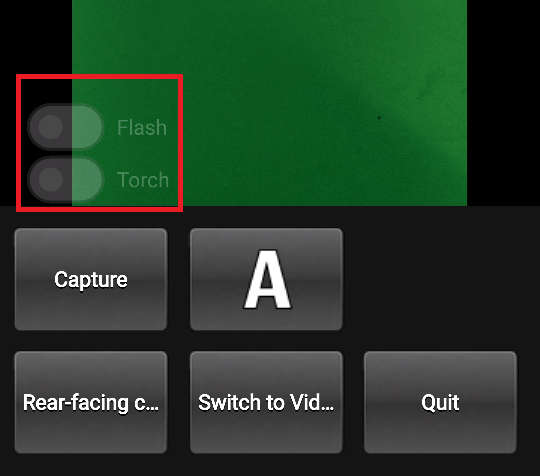
FlashControl.qml
this enables flash mode selection and torch functionality to be toggled via a Switch. As with the zoom control, the switches are only visible on top of the preview window if the active device supports these functions.
Here we check if the functions are supported:
required property Camera camera
property bool mIsFlashSupported: camera.isFlashModeSupported(Camera.FlashOn)
property bool mIsTorchSupported: camera.isTorchModeSupported(Camera.TorchOn)
Here we implement the
flashModeControl
switch, which also directly controls the Camera device.
Switch {
    id: flashModeControl
    visible: topItem.mIsFlashSupported
    checked: topItem.camera.flashMode === Camera.FlashOn
    opacity: checked ? 0.75 : 0.25
    text: "Flash"
    contentItem: Text {
        text: flashModeControl.text
        color: "white"
        leftPadding: flashModeControl.indicator.width + flashModeControl.spacing
    }
    onClicked: topItem.camera.flashMode = checked ? Camera.FlashOn : Camera.FlashOff
}
Torch control is implemented in a similar way.
