A desktop QML app utilizing customized Qt Quick Controls to display text files from a filesystem.
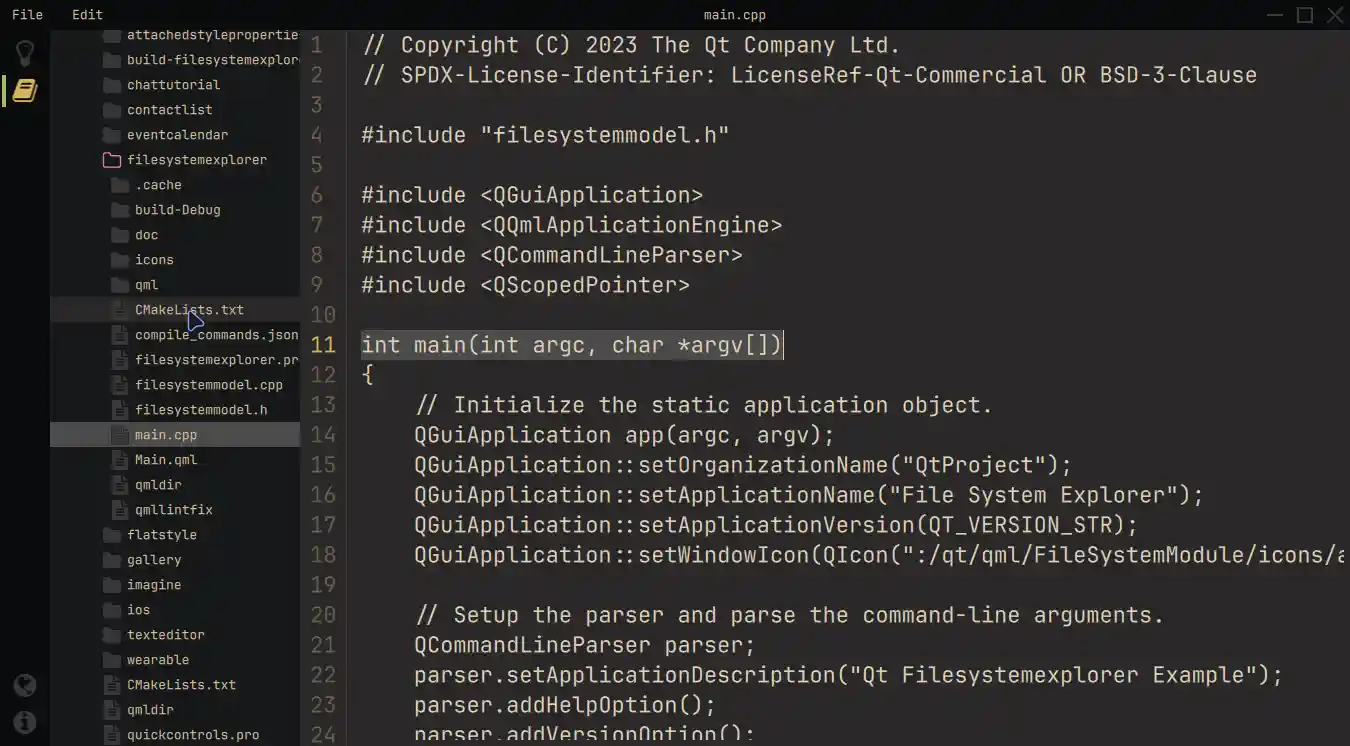
The File System Explorer example uses a modern layout that consists of three major components: an icon-based Sidebar to the left, a resizable TreeView displaying the file system from a QFileSystemModel ,和 TextArea displaying the selected text files. Customized quick controls and frameless windows, with specialized window decorations, ensure a common look and feel across all operating systems. When launching this application from the command-line, you can provide an initial directory as a parameter. This initial directory will be used by the TreeView to set the starting point for displaying the directory structure.
要运行范例从 Qt Creator ,打开 欢迎 模式,然后选择范例从 范例 。更多信息,见 Qt Creator:教程:构建并运行 .
To begin with, the example provides the colors throughout a singleton QML object. This is to ensure structured control over the application's appearance.
pragma Singleton
QtObject {
    readonly property color background: "#292828"
    readonly property color surface1: "#171819"
    readonly property color surface2: "#090A0C"
    readonly property color text: "#D4BE98"
    readonly property color textFile: "#E1D2B7"
    readonly property color disabledText: "#2C313A"
    readonly property color selection: "#4B4A4A"
    readonly property color active: "#292828"
    readonly property color inactive: "#383737"
    readonly property color folder: "#383737"
    readonly property color icon: "#383737"
    readonly property color iconIndicator: "#D5B35D"
    readonly property color color1: "#A7B464"
    readonly property color color2: "#D3869B"
}
范例使用
FramelessWindowHint
flag inside the
ApplicationWindow
to create a customized decoration, as opposed to relying on the operating system's window decoration. In order to achieve an equivalent interaction with the window, the example overrides the
contentItem
property of the customized
MenuBar
and displays information text and interaction possibilities for dragging or closing the application.
Inline Components
simplify this process.
            component InteractionButton: Rectangle {
                id: interactionButton
                signal action()
                property alias hovered: hoverHandler.hovered
                Layout.fillHeight: true
                Layout.preferredWidth: height
                color: hovered ? Colors.background : "transparent"
                HoverHandler {
                    id: hoverHandler
                }
                TapHandler {
                    id: tapHandler
                    onTapped: interactionButton.action()
                }
            }
            InteractionButton {
                id: minimize
                onAction: root.dragWindow.showMinimized()
                Rectangle {
                    anchors.centerIn: parent
                    color: parent.hovered ? Colors.iconIndicator : Colors.icon
                    height: 2
                    width: parent.height - 14
                }
            }
            InteractionButton {
                id: maximize
    ...
The Sidebar on the left includes checkable navigation buttons on top and one-shot buttons on the bottom. A ButtonGroup and a container are used to ensure that only one entry is active at any given time. It is then possible to provide different views using a property alias for the current position, along with a StackLayout .
This technique lets you extend the functionality by adding another button and the corresponding element inside the StackLayout .
                StackLayout {
                    anchors.fill: parent
                    currentIndex: sidebar.currentTabIndex
                    // Shows the help text.
                    Text {
                        text: qsTr("This example shows how to use and visualize the file system.\n\n"
                                 + "Customized Qt Quick Components have been used to achieve this look.\n\n"
                                 + "You can edit the files but they won't be changed on the file system.\n\n"
                                 + "Click on the folder icon to the left to get started.")
                        wrapMode: TextArea.Wrap
                        color: Colors.text
                    }
                    // Shows the files on the file system.
                    FileSystemView {
                        id: fileSystemView
                        color: Colors.surface1
                        onFileClicked: path => root.currentFilePath = path
                    }
                }
The StackLayout includes, besides some information text, the FileSystemView . This custom component displays files and folders and populates it with data from a C++ model . You can then select the files and read them accordingly.
QString FileSystemModel::readFile(const QString &filePath)
{
    // Don't issue errors for an empty path, as the initial binding
    // will result in an empty path, and that's OK.
    if (filePath.isEmpty())
        return {};
    QFile file(filePath);
    if (file.size() >= 2'000'000)
        return tr("File size is too big.\nYou can read files up to %1 MB.").arg(2);
    static const QMimeDatabase db;
    const QMimeType mime = db.mimeTypeForFile(QFileInfo(file));
    // Check if the mimetype is supported and return the content.
    const auto mimeTypesForFile = mime.parentMimeTypes();
    for (const auto &m : mimeTypesForFile) {
        if (m.contains("text", Qt::CaseInsensitive)
                || mime.comment().contains("text", Qt::CaseInsensitive)) {
            if (!file.open(QIODevice::ReadOnly | QIODevice::Text))
                return tr("Error opening the File!");
            QTextStream stream(&file);
            return stream.readAll();
        }
    }
    return tr("Filetype not supported!");
}
Right-clicking a folder in the
TreeView
opens a popup
Menu
, which allows control over the
rootIndex
特性为
TreeView
.
            MyMenu {
                id: contextMenu
                Action {
                    text: qsTr("Set as root index")
                    onTriggered: {
                        fileSystemTreeView.rootIndex = fileSystemTreeView.index(treeDelegate.row, 0)
                    }
                }
                Action {
                    text: qsTr("Reset root index")
                    onTriggered: fileSystemTreeView.rootIndex = undefined
                }
            }
        }
SplitView
lets you dynamically share the space between the
StackLayout
and the editor. The editor contains the
TextArea
that displays the opened file and provides all the functionality needed to edit text files. Additionally, the editor provides line numbers, which can be toggled on and off in the
Menu
.
            Editor {
                id: editor
                showLineNumbers: root.showLineNumbers
                currentFilePath: root.currentFilePath
                SplitView.fillWidth: true
                SplitView.fillHeight: true
            }
For a better understanding of the customization process, investigate the Customizing a Control article first. This example uses reusable and customized components.
For instance, the
MyMenu
component customizes Menu's
background
property, its delegate's
contentItem
,和
background
特性。
// Copyright (C) 2023 The Qt Company Ltd.
// SPDX-License-Identifier: LicenseRef-Qt-Commercial OR BSD-3-Clause
import QtQuick
import QtQuick.Controls.Basic
import FileSystemModule
Menu {
    id: root
    delegate: MenuItem {
        id: menuItem
        contentItem: Item {
            Text {
                anchors.verticalCenter: parent.verticalCenter
                anchors.left: parent.left
                anchors.leftMargin: 5
                text: menuItem.text
                color: enabled ? Colors.text : Colors.disabledText
            }
            Rectangle {
                id: indicator
                anchors.verticalCenter: parent.verticalCenter
                anchors.right: parent.right
                width: 6
                height: parent.height
                visible: menuItem.highlighted
                color: Colors.color2
            }
        }
        background: Rectangle {
            implicitWidth: 210
            implicitHeight: 35
            color: menuItem.highlighted ? Colors.active : "transparent"
        }
    }
    background: Rectangle {
        implicitWidth: 210
        implicitHeight: 35
        color: Colors.surface2
    }
}
Another example is the customization of the
ScrollIndicator
在
FileSystemView
, which uses customized animations. Here, the example overrides the
contentItem
.
        ScrollIndicator.vertical: ScrollIndicator {
            active: true
            implicitWidth: 15
            contentItem: Rectangle {
                implicitWidth: 6
                implicitHeight: 6
                color: Colors.color1
                opacity: fileSystemTreeView.movingVertically ? 0.5 : 0.0
                Behavior on opacity {
                    OpacityAnimator {
                        duration: 500
                    }
                }
            }
        }
If you're interested in the Python version of this example, you can find it here . This showcases the usage of Qt for Python and demonstrates how it can be used to create the same application.
Additionally, there is a detailed tutorial available that provides step-by-step instructions on how to extend this example with additional features. This tutorial can be helpful if you want to explore and learn more about building upon the existing functionality of the File System Explorer.
另请参阅 所有 Qt 范例 and Qt Quick Controls 范例 .
