A calculator designed for landscape and portrait devices. It uses Qt Quick custom components and responsive layouts for the user interface, and JavaScript for the application logic.
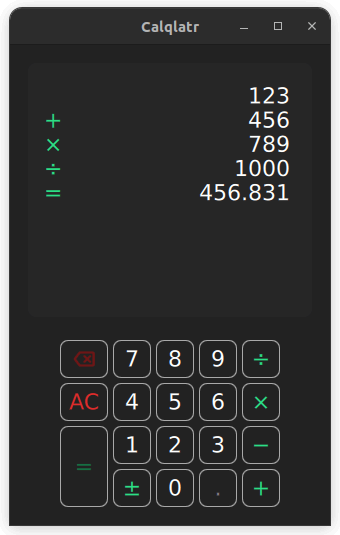
Calqlatr demonstrates various QML and Qt Quick features, such as displaying custom components and using responsive layouts. The application logic is implemented in JavaScript and the UI is implemented in QML.
要运行范例从 Qt Creator ,打开 欢迎 模式,然后选择范例从 范例 。更多信息,见 Qt Creator:教程:构建并运行 . After running the example, you should be able to use the application as a standard calculator. Change the phone from portrait to landscape mode - or, on the desktop, resize the main window - to activate the responsive layout.
The Calqlatr application uses custom types. Most of them are defined in their own separate .qml file:
Main.qml
content/ApplicationState.qml
content/BackspaceButton.qml
content/CalculatorButton.qml
content/Display.qml
content/NumberPad.qml
Main.qml
contains the top-level window and root item. It makes use of the other custom types in
content
directory. For example, the
NumberPad
type (defined by
content/NumberPad.qml
) is used in
Main.qml
to create the number pad of the calculator:
        NumberPad {
            id: numberPad
            Layout.margins: root.margin
            isPortraitMode: root.isPortraitMode
            state: state
        }
Inline components
allow you to declare multiple components inside of a
.qml
file. The example uses inline components in
NumberPad.qml
to define two components,
DigitButton
and
OperatorButton
:
    component DigitButton: CalculatorButton {
        onClicked: {
            controller.state.digitPressed(text);
            controller.updateDimmed();
        }
    }
    component OperatorButton: CalculatorButton {
        dimmable: true
        implicitWidth: 48
        textColor: controller.qtGreenColor
        onClicked: {
            controller.state.operatorPressed(text);
            controller.updateDimmed();
        }
    }
Both components are of type
CalculatorButton
(as defined in
CalculatorButton.qml
), but provide a custom handler for the clicked signal, and tweak some property defaults.
DigitButton
and
OperatorButton
are then instantiated later on in
NumberPad.qml
:
                DigitButton {
                    text: "e"
                    dimmable: true
                    implicitWidth: 48
                }
                OperatorButton { text: "ln" }
Check out 透过 QML 文档定义对象类型 for more details on defining custom QML components.
In this example, responsive layouts arrange the different UI components for both portrait and landscape modes. You can notice this in
Main.qml
, which defines a
ColumnLayout
for portrait mode, and
RowLayout
for landscape:
        ColumnLayout {
            id: portraitMode
            anchors.fill: parent
            visible: root.isPortraitMode
            LayoutItemProxy {
                target: display
                Layout.minimumHeight: display.minHeight
            }
            LayoutItemProxy {
                target: numberPad
                Layout.alignment: Qt.AlignHCenter
            }
        }
        RowLayout {
            id: landscapeMode
            anchors.fill: parent
            visible: !root.isPortraitMode
            LayoutItemProxy {
                target: display
            }
            LayoutItemProxy {
                target: numberPad
                Layout.alignment: Qt.AlignVCenter
            }
        }
The
ColumnLayout
represents the portrait layout for the application, and the
RowLayout
represents the landscape layout. The
visible
properties handle which layout is used at a given time. The
id
属性在
NumberPad
and
Display
components are used to set the
target
特性为
LayoutItemProxy
types. This allows both layouts to use the same content items. In addition, properties can be forwarded within the
LayoutItemProxy
item to the
target
itself. For example, when the
NumberPad
is instantiated, both layouts require a different
Layout.alignment
.
A responsive layout is also used in
NumberPad.qml
when defining the portrait and landscape layout for the
NumberPad
itself:
        RowLayout {
            spacing: controller.spacing
            GridLayout {
                id: scientificGrid
                columns: 3
                columnSpacing: controller.spacing
                rowSpacing: controller.spacing
                visible: !controller.isPortraitMode
                OperatorButton {
                    text: "x²"
                    Accessible.name: "x squared"
                }
                OperatorButton {
                    text: "⅟x"
                    Accessible.name: "one over x"
                }
                OperatorButton { text: "√" }
                OperatorButton {
                    text: "x³"
                    Accessible.name: "x cubed"
                }
                OperatorButton {
                    text: "sin"
                    Accessible.name: "sine"
                }
                OperatorButton {
                    text: "|x|"
                    Accessible.name: "absolute value"
                }
                OperatorButton { text: "log" }
                OperatorButton {
                    text: "cos"
                    Accessible.name: "cosine"
                }
                DigitButton {
                    text: "e"
                    dimmable: true
                    implicitWidth: 48
                }
                OperatorButton { text: "ln" }
                OperatorButton { text: "tan" }
                DigitButton {
                    text: "π"
                    dimmable: true
                    implicitWidth: 48
                }
            }
            GridLayout {
                id: mainGrid
                columns: 5
                columnSpacing: controller.spacing
                rowSpacing: controller.spacing
                BackspaceButton {
                    onClicked: {
                        controller.state.operatorPressed(this.text);
                        controller.updateDimmed();
                    }
                }
                DigitButton { text: "7" }
                DigitButton { text: "8" }
                DigitButton { text: "9" }
                OperatorButton {
                    text: "÷"
                    implicitWidth: 38
                }
                OperatorButton {
                    text: "AC"
                    textColor: controller.backspaceRedColor
                    accentColor: controller.backspaceRedColor
                }
                DigitButton { text: "4" }
                DigitButton { text: "5" }
                DigitButton { text: "6" }
                OperatorButton {
                    text: "×"
                    implicitWidth: 38
                }
                OperatorButton {
                    text: "="
                    implicitHeight: 81
                    Layout.rowSpan: 2
                }
                DigitButton { text: "1" }
                DigitButton { text: "2" }
                DigitButton { text: "3" }
                OperatorButton {
                    text: "−"
                    implicitWidth: 38
                }
                OperatorButton {
                    text: "±"
                    implicitWidth: 38
                }
                DigitButton { text: "0" }
                DigitButton {
                    text: "."
                    dimmable: true
                }
                OperatorButton {
                    text: "+"
                    implicitWidth: 38
                }
            }
        } // RowLayout
Depending on
controller.isPortraitMode
, the number pad contains only the buttons of a simple calculator (
mainGrid
), or also some more advanced functionality via the
scientificGrid
.
在
CalculatorButton.qml
file, the text colors of the number pad buttons are also animated.
        ...
        color: button.getTextColor()
        Behavior on color {
            ColorAnimation {
                duration: 120
                easing.type: Easing.OutElastic
            }
        }
    }
The color changes are animated by defining a
行为
在
color
property. When a button is set to
dimmed = true
, the button appears darker. When a button is pressed, it lights up green. In order to dynamically change the
dimmed
property of all the buttons on the
NumberPad
,
buttonPressed
signal calls the
NumberPad
's
updateDimmed()
函数。
    function updateDimmed() {
        for (let i = 0; i < mainGrid.children.length; i++) {
            mainGrid.children[i].dimmed = state.isButtonDisabled(mainGrid.children[i].text);
        }
        for (let j = 0; j < scientificGrid.children.length; j++) {
            scientificGrid.children[j].dimmed = state.isButtonDisabled(
                        scientificGrid.children[j].text);
        }
    }
The
calculator.js
and
ApplicationState.qml
files define the calculator's engine.
calculator.js
contains the logical state of the calculator, as well as operations to change the state.
ApplicationState.qml
exposes this API through a QML type.
Let's first have a look at
calculator.js
:
let accumulator = 0
let pendingOperator = ""
let lastButton = ""
let digits = ""
accumulator
,
pendingOperator
,
lastButton
,
represent
the logical state of the calculator.
function isOperationDisabled(op, display) {
    ...
}
isOperationDisabled()
返回
true
if an operation
op
should be disabled, based on the current engine and display state. Otherwise, it returns
false
.
function digitPressed(op, display) {
    ...
}
function operatorPressed(op, display) {
    ...
}
digitPressed()
and
operatorPressed()
functions update the engine and display state based on the pressed buttons.
ApplicationState.qml
is exposing the JavaScript functions defined in
calculator.js
behind a nicer QML API:
import QtQml
import "calculator.js" as CalcEngine
calculator.js
is imported under the name
CalcEngine
.
QtObject {
    required property Display display
    function operatorPressed(operator) {
        CalcEngine.operatorPressed(operator, display);
    }
    function digitPressed(digit) {
        CalcEngine.digitPressed(digit, display);
    }
    function isButtonDisabled(op) {
        return CalcEngine.isOperationDisabled(op, display);
    }
}
required property
makes sure that an instance of
Display.qml
is always available in the
ApplicationState
under the name
display
.
display
is in turn used in the
operatorPressed()
,
digitPressed()
and
isButtonDisabled()
函数。
This application comes with Squish GUI tests targeted for Qt for Android. The tests are made with Squish for Qt and are written in Python and can be found under the application test directory.
When using Squish for Qt for Android, make sure to use the
Qt built-in hook
and
forward Squish port
with adb. If you are getting the error "Cannot load library" with
dlopen
failing, disable
QT_USE_TARGET_ANDROID_BUILD_DIR
from CMake configuration, or clear it from
Projects->Build Settings->CMake->Current Configuration
in Qt Creator.
If you don't have a Squish license, you can get a free trial .
另请参阅 QML 应用程序 .
